The all-new Cricut machine has finally arrived at your doorstep. You’ve been waiting for it for a long time, and it’s with you now. Excitement about creating custom cards, personalized t-shirts or mugs, or vinyl decals is on the rise. You may have unboxed the machine and plugged it into the power outlet.
But, wait for a second, there is one important thing that you need to know. It is to download and install the Cricut Design Space. This is the main software you can use to start creating your crafts. How to get the Cricut Design Space software on your device?
We have discussed the entire process of how to perform Cricut app download and installation for both Windows and Mac. Let’s check it out.
Steps to Download Cricut Design Space on Windows
These are the important steps to remember for downloading and installing the Design Space app on a Windows 11 or 10 device:
Step 1: Open your web browser and visit the official Cricut website: design.cricut.com.
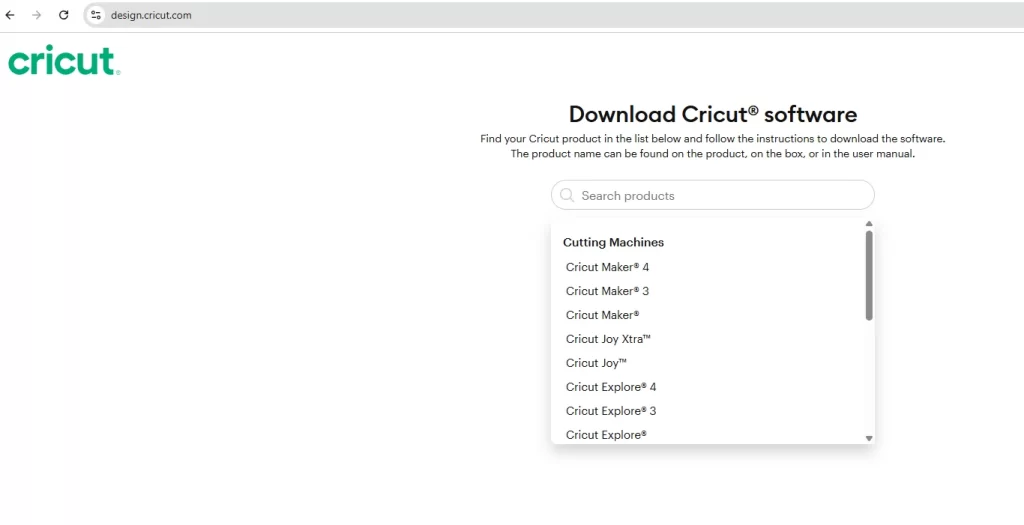
Step 2: Tick the checkbox next to “I agree to the terms of use and Privacy Policy” and click on Download.
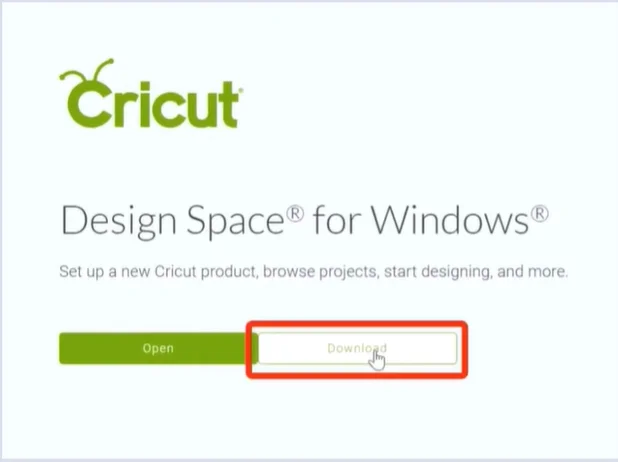
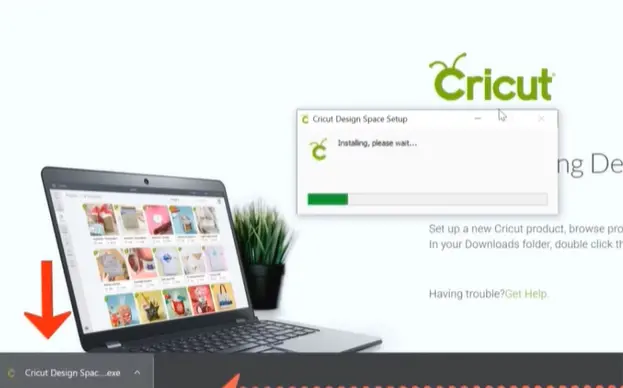
Step 3: Once the download is complete, double-click the downloaded file to start installation.
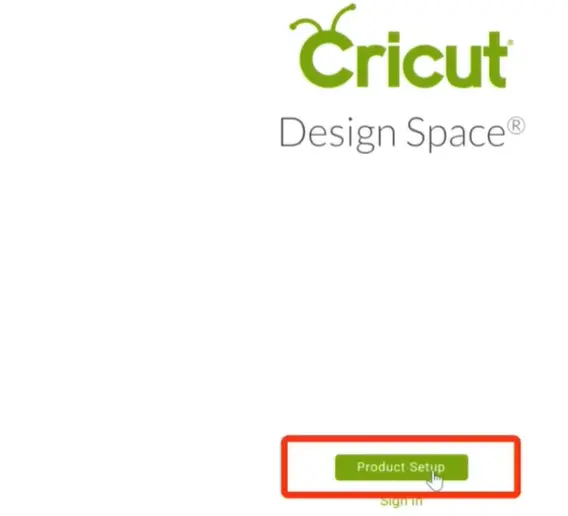
Step 4: In the Cricut Design Space window, click on Product Setup.
Step 5: Then select your product type to continue.
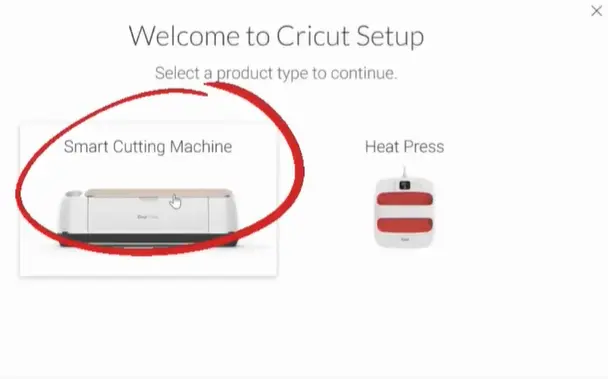
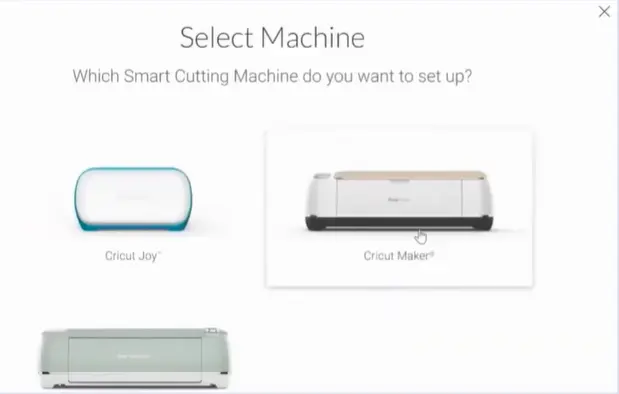
Step 6: Select the Smart Cutting Machine.
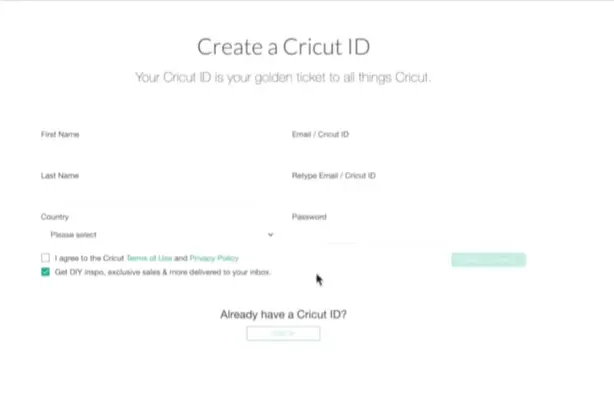
Step 7: When the Create a Cricut ID window shows up, click the Sign in option if you already have a Cricut account.
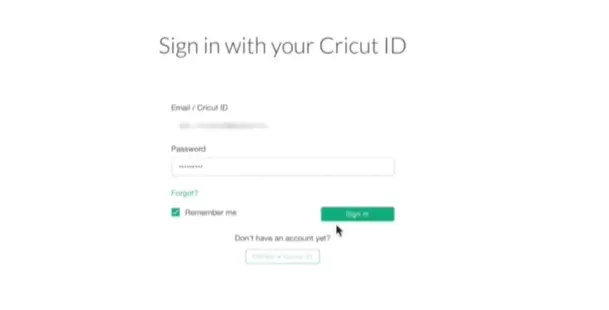
Step 8: Enter your email or Cricut ID and password, and click Sign In.
Step 9: Now, it’ll give you some steps to set up your device; click on Continue as you follow along the steps.
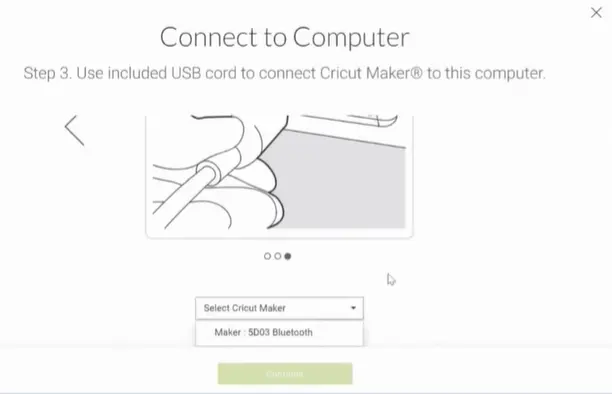
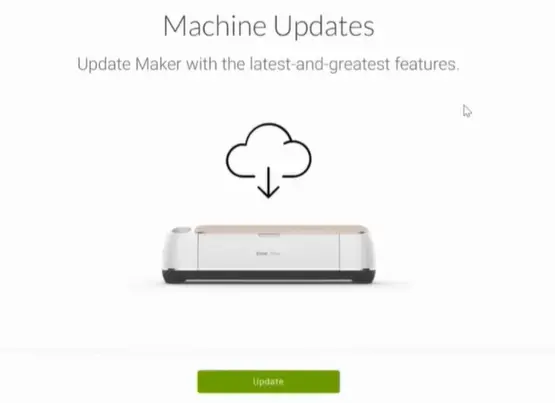
Step 10: Once the setup is complete, it’ll check for an Update; if an update is available, click Update. (Skipping the update part can result in functionality issues or minor glitches in Design Space.)
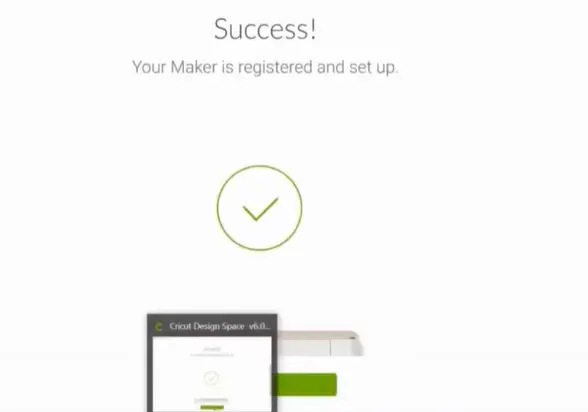
Step 11: Click Next, then Next in the Success! Window.
That is what you need to know for performing the Cricut Design Space download on a Windows 11/10 computer. Now, let’s learn how to do Cricut download for Mac.
Steps to Download Cricut Design Space on Mac
Follow these key instructions to perform Cricut software download on your Mac computer:
Step 1: Open your web browser and go to the official Cricut setup website: design.cricut.com.
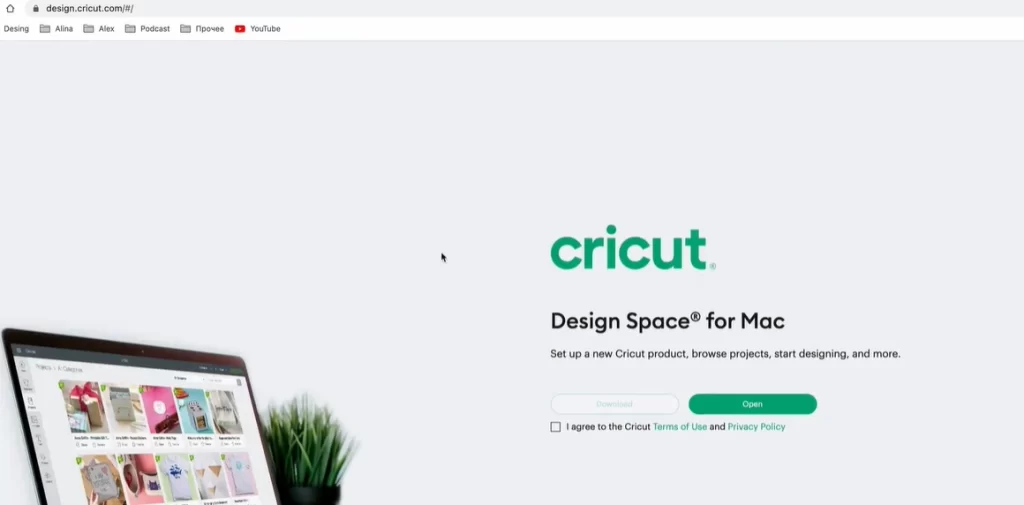
Step 2: Check the box next to the terms of use and privacy policy.
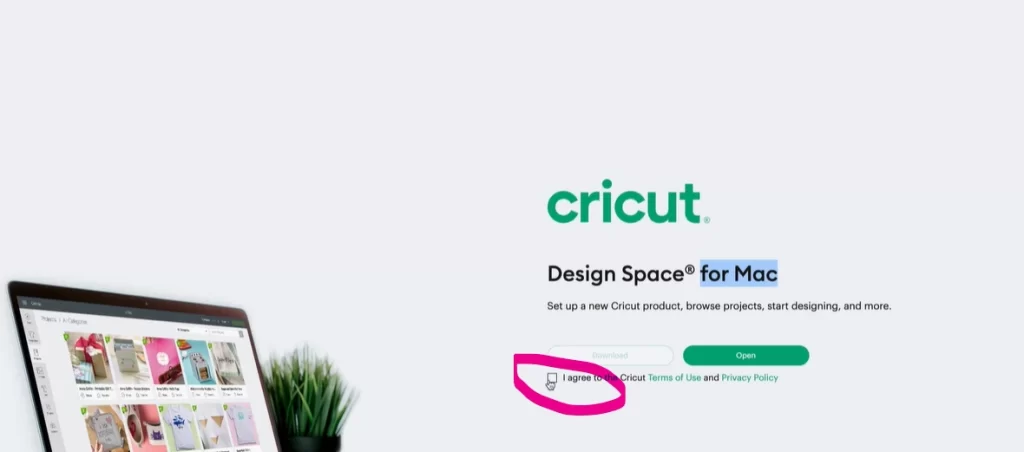
Step 3: Select OK and click the Download button.
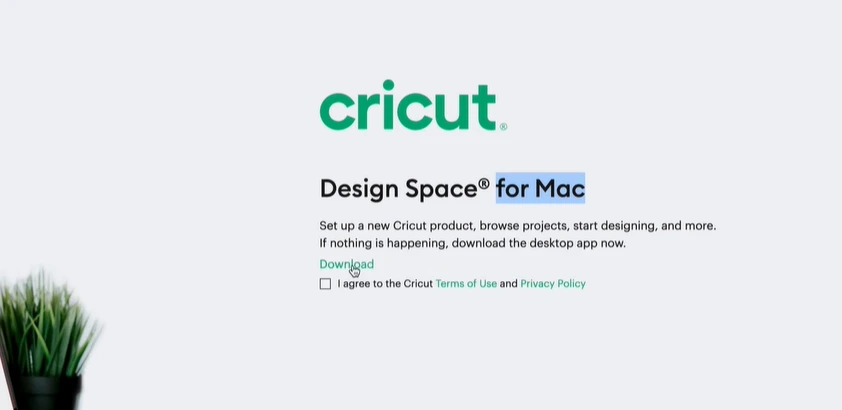
Step 4: Select “Allow” to download from the Cricut Design official site.
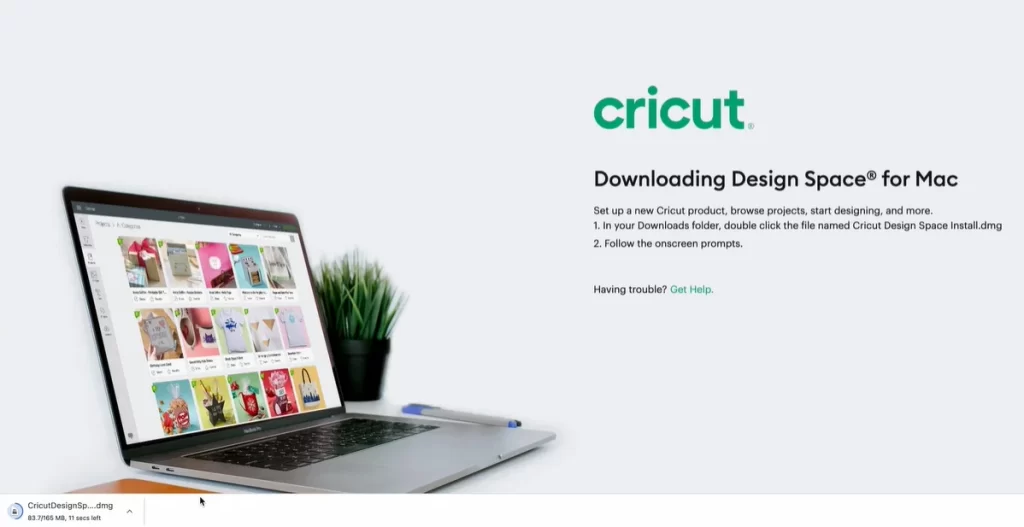
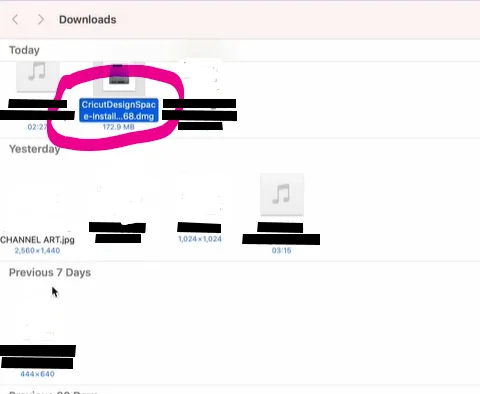
Step 5: Once you have finished downloading, you must go to the Downloads folder and open the file.
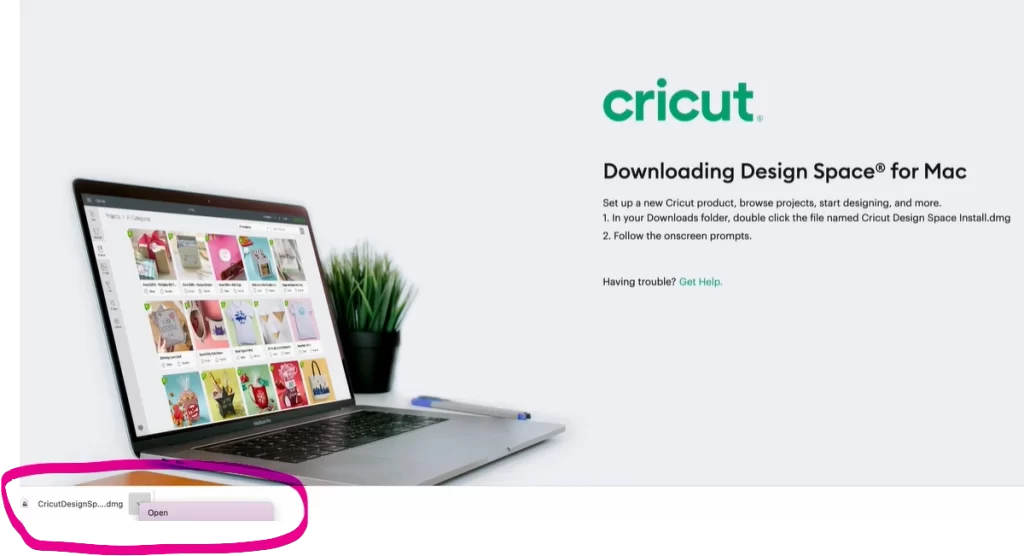
Step 6: Double-click on the Design Space application.
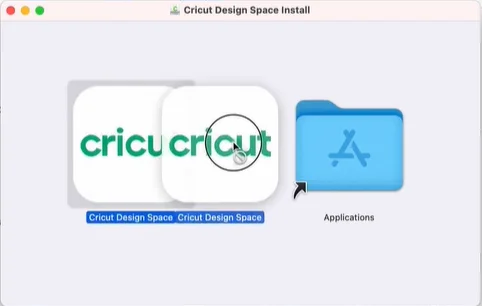
Step 7: Drag the Cricut icon to bring it to the Applications folder.
How to Download Fonts to Cricut Design Space?
Once you have finished the cricut app download, you are ready to create your own DIY projects. You may want to add some creative fonts to your designs.
Want to download fonts in Cricut Design Space but not sure how? Not to worry, we have explained the steps below on how to download fonts to Cricut Design Space:
On PC
- Step 1: Quit your Cricut Design app.
- Step 2: Download your font. You can prefer online sources like Google Fonts or Da Fonts to download the best fonts for your design.
- Step 3: Find and open the downloaded font from your computer’s Downloads folder, and then click the Install option.
- Step 4: Open your Design Space, click on the Text option, and type a random phrase.
- Step 5: Select the text and click on Font in the top toolbar.
- Step 6: Click “System” to use the font.
- Step 7: You can see a search box. In the box, type your font name and select it.
On Mobile Device
- Step 1: On your web browser, open your favorite font site.
- Step 2: Download the font that you prefer.
- Step 3: Open your files and go to the Downloads section.
- Step 4: Tap on the downloaded zip file to unzip it.
- Step 5: Open the Font folder on your device.
- Step 6: Tap on Select in the top right.
- Step 7: Select the OTF (OpenType Font) file, and after that, tap on the Share option.
- Step 8: Share the OTF file with iFont.
- Note: The iFont app is available in both the App Store and the Play Store.
- Step 9: Tap on the “Install” button. You can see this button in blue.
- Step 10: Tap on the Allow option when prompted and let the website download a configuration file.
- Step 11: Once the file is downloaded, tap Close.
- Step 12: Open Settings on your device. Tap on profile download.
- Step 13: Tap on Install.
- Step 14: Open Design Space and tap Text.
- Step 15: Tap on the System option, type your font name in the search field, and select it.
- Step 16: Write anything you want and tap anywhere to see the font you added.
How to Download an Image From Cricut Design Space?
Now that you have your favorite fonts added, you may want to experiment with images. The first thing that you need to do is download the image in Design Space.
Remember: Design Space does not natively allow for downloading images from its library. If you already have a design ready (created or uploaded), here are the steps to save it:
Method 1: Take a Screenshot
- Open Design Space and go to your canvas with the image.
- Arrange the design exactly how you want it.
- Zoom in on the design to get a higher quality of it.
- Now, take a screenshot. On a Windows PC, press Windows + Shift + S, select the area, and save it. On a Mac, press Command + Shift + 4, select the area, and the image will be saved as a PNG.
- Crop and edit the image in any image editor to remove extra space.
Method 2: Access Uploaded Images
- If you have uploaded an image (SVG, PNG, JPG) to Cricut, go to “Upload” in Cricut Design Space.
- Look for the uploaded image.
- Once you have found it, right-click the image thumbnail and select “Save As”.
- Select a location and save it in the format of your choice.
Summing Up
The Cricut Design Space download for Windows and macOS wasn’t that tough. As soon as you receive your Cricut machine and connect it via USB to your computer, this is the first step to consider. Just follow the instructions we have provided for both Windows and macOS devices, and you will get started with your projects in the canvas.
Don’t forget the steps we’ve mentioned for downloading fonts and images for your crafting projects. These are the crucial elements that can make your designs look absolutely crisp and professional.
Frequently Asked Questions
Is Cricut Design Space Software Free to Use?
The answer is yes. Cricut Design Space is a free software. But, if you want to work with premium images and want to try more advanced features, you’d need a subscription.
Is It Possible to Download Images Directly from Cricut Design Space?
Well, Design Space does not allow users to download images directly from its library. There are two ways to get the images. First, take a screenshot of your design; second, use the original files you uploaded.
Do I Really Need to Update After Installing Design Space?
The step to update Design Space after installation is quite necessary. Design Space shows a prompt to check for updates. Updating the software can assure smooth functioning, and you don’t have to face any glitches later on.
How to Download Fonts to Cricut for Free?
To learn how to download fonts to Cricut without paying a single penny, you can prefer certain websites like:
- Google Fonts
- DaFont
- Font Squirrel
These are the most trusted sources to offer free fonts for downloading. Some of these offer free fonts only for personal projects.