It can be confusing when you don’t know why this issue occurs or how to fix it. In such cases, a quick reset can help get your machine back in action. But how can you reset it? That’s the question on your mind, and we’ve got the answer. We have outlined the complete process of resetting your Cricut EasyPress Mini in simple steps to make it easy for you.
Before we dive into the process, let’s go over a few important things you should know.
Things to Know When Resetting Cricut EasyPress Mini
Here are a few important things to keep in mind before you start the Cricut EasyPress Mini reset process:
No RESET Button
Note that a Cricut EasyPress Mini does not have a dedicated “Reset” button. So, if you want to reset it, power cycling is the available option.
Warning Signs to Watch
After a reset, you may notice issues like flashing lights or irregular heating. So, you must be aware of them, and if they show up, contact Cricut Support.
Factory Settings Not Available
Unlike phones or computers, the EasyPress Mini doesn’t have a factory reset option. Instead, you can fix minor glitches by doing a manual power cycle.
Limited Heat Settings
There are three heat settings that a Cricut EasyPress Mini uses: low, medium, and high. So, you don’t need to worry about losing custom settings when resetting.
No Firmware Updates
The EasyPress Mini does not come with wireless connectivity options. Since it doesn’t support Bluetooth, firmware updates or resets are not possible.
Possible Issues During a Cricut EasyPress Mini Reset
Resetting the EasyPress Mini seems simple, but some issues may occur. These issues may include:
- Unresponsive controls
- Flashing or error lights
- Reset is not working at all
- Loss of heat settings
Steps to Perform a Cricut EasyPress Mini Reset
Follow the given instructions to successfully perform a reset on your Cricut EasyPress Mini:
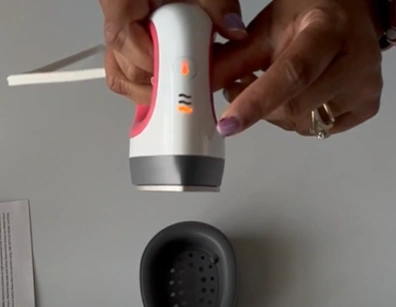
Step 1: First, unplug the machine by safely disconnecting its power cord from the electrical outlet.
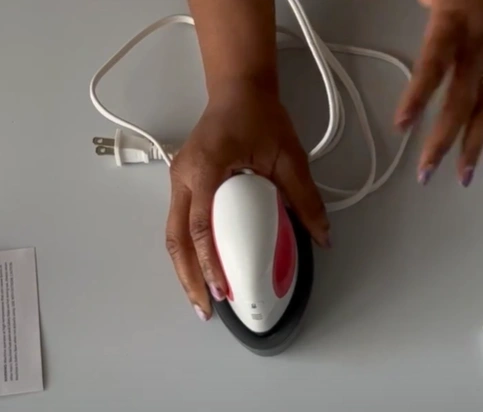
Step 2: Next, wait 1 or 2 minutes for the machine to fully discharge any residual power.
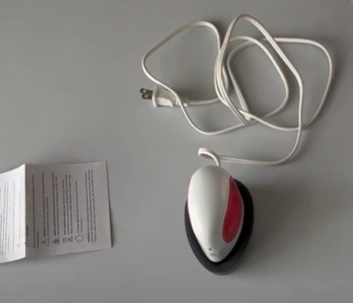
Step 3: Now, you need to plug the EasyPress Mini back into the outlet.
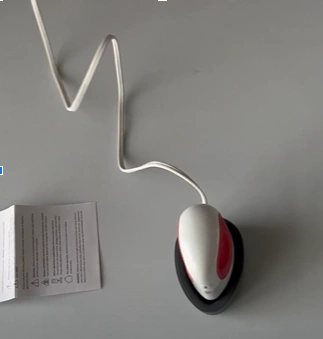
Step 4: Once done, press the power button to turn the machine back on. Your Cricut EasyPress Mini should now be reset.
Conclusion
That’s how you can reset your Cricut EasyPress Mini and get it working again. No more getting stuck in the middle of your important tasks. Just follow the steps above to fix common issues and continue your projects without interruptions.
Always remember the things we have discussed earlier before you begin the reset process and tackle the potential issues that might occur.