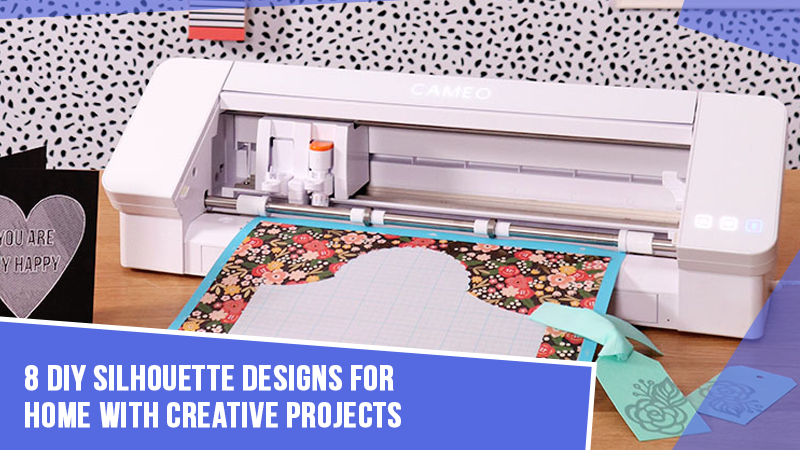
You may have wondered, Why is this happening? Don’t worry, it’s a common issue and can be fixed easily. The “Silhouette Cameo 4 Pro not cutting” problem is quite common among users, and it can be resolved with a few simple steps. That’s exactly what we want to discuss with you. You might already be curious to know the solutions, but first, let’s look at the reasons why your Cameo 4 Pro machine is failing.
Why Silhouette Cameo 4 Pro Is Not Cutting
There are many specific reasons why your Silhouette Cameo 4 Pro is not cutting. It can be the following:
Wrong Cut Settings
The default force settings may be too low, which can stop the machine from cutting properly. So, you must adjust this setting to a higher value, specifically for HTV or vinyl. Also, check that the blade’s physical depth matches the setting in Silhouette Studio. Another reason your machine may not cut is a misaligned blade housing.
Blade Not Aligned
Another reason your machine may not cut is a misaligned blade housing. If the blade is not positioned properly in the carriage, the machine won’t give you accurate cuts, or it might not recognize the blade at all. Therefore, it is advisable to inspect the blade housing before you start cutting.
Outdated Firmware
Sometimes, software-related issues may also impact the cutting process of your Silhouette 4 Pro machine. Therefore, you must verify that the machine’s firmware is up to date.
Problems You May Face While Troubleshooting
When you are trying to fix your Silhouette Cameo 4 Pro that is failing to cut, you may encounter these issues:
- Wrong material settings in the software
- USB or Bluetooth connection problems
- Outdated version of Silhouette Studio
- Dull or damaged blade
- Mat not recognized
- Not performing a test cut
2 Ways to Fix Silhouette Cameo 4 Pro Not Cutting
Try the following methods to correctly troubleshoot the Silhouette Cameo 4 Pro not cutting issue:
Method 1: Check the Blade
Step 1: Ensure that you are using the right blade.
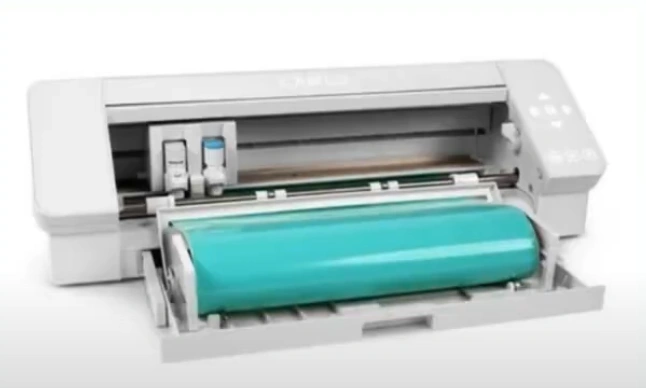
Step 2: Next, remove the blade from its housing and reinsert it.
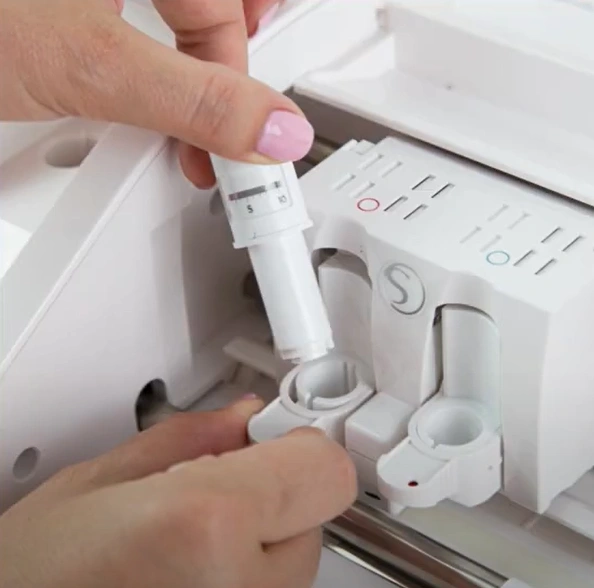
Step 3: Confirm that the blade is seated correctly, and then lock it in place.
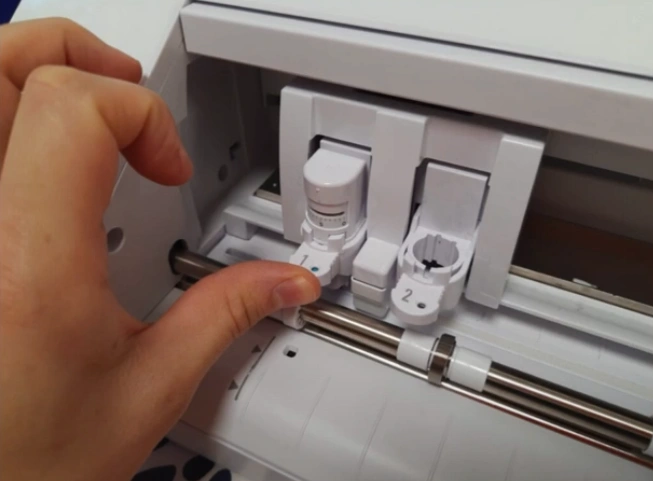
Method 2: Verify the Cut Settings
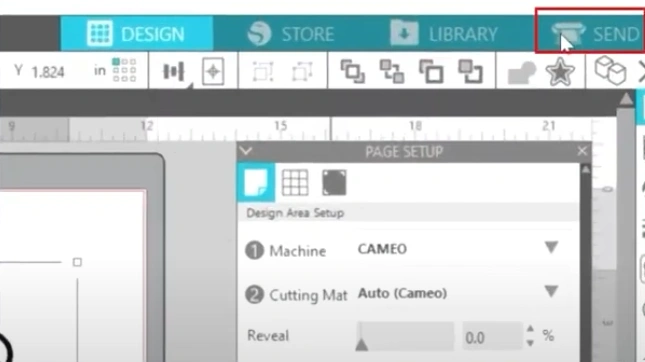
Step 1: Open Silhouette Studio on your computer and click “Send” at the top right corner of the screen.
Step 2: Next, decrease the cutting speed.
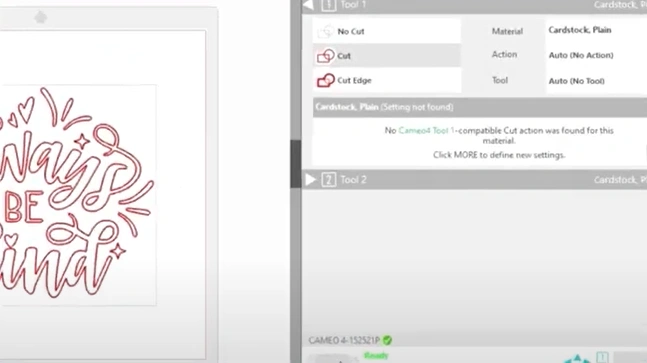
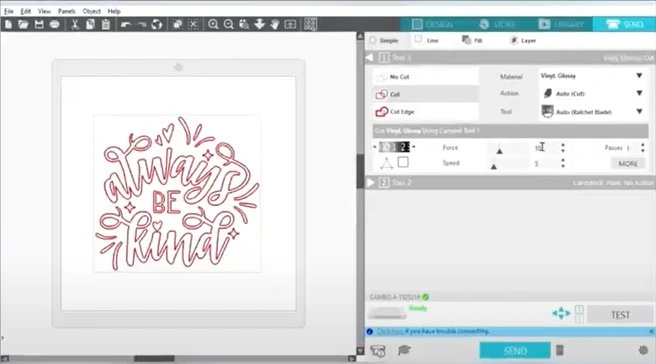
Step 3: Using the slider or input box, increase the Force.
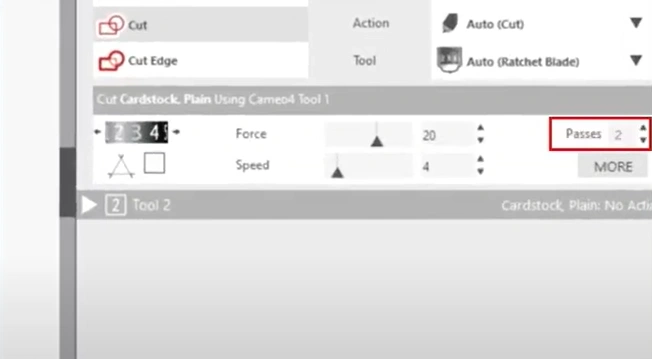
Step 4: Set the Passes to 2.
Step 5: After that, adjust the blade level.
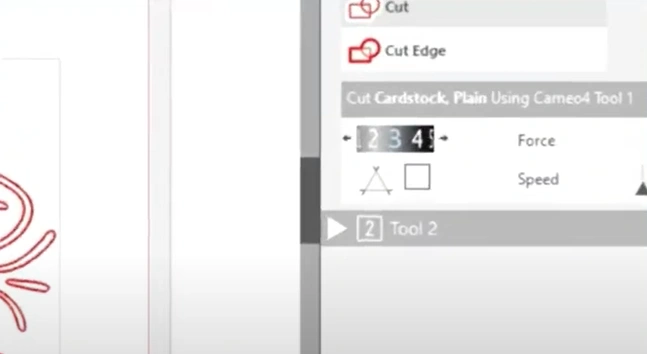
Step 6: Perform a test cut and check if the problem is resolved.
Also Read:- How to Setup Silhouette Cameo 4
Final Thoughts
These steps should help you fix the Silhouette Cameo 4 Pro not cutting issue. Start by removing the blade, checking it, reinserting it properly, and making sure it’s locked in place. Next, adjust the cut settings accordingly and update the firmware and software if required. Once you have completed everything, perform a test cut to confirm everything works correctly.