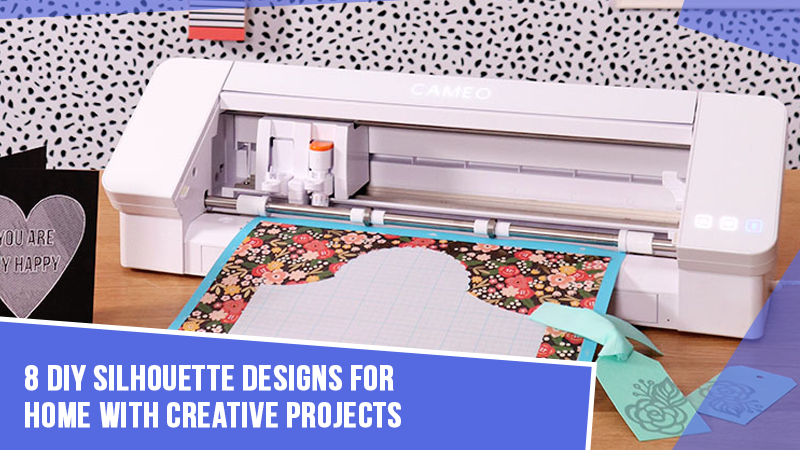
Cricut Design Space is a user-friendly online tool that empowers crafters to design, customize, and work on various crafting projects. It caters to both beginners and experienced crafters. However, there can be instances when the user may face issues like a Cricut Design Space machine communication error.
If such a situation occurs, it may hamper the seamless functioning of Cricut Design Space. Why does it happen? There are several reasons, such as incorrect network settings, corrupt cache files, third-party virus interference, and more. An outdated version of Cricut Design Space can also be the reason.
So, what should we do to resolve the Cricut Design Space error? We have outlined the steps you can apply to get your Cricut Design Space back on track. Let us first delve into the potential issues that may occur when fixing the Cricut Design Space error.
Potential Issues When Fixing Cricut Design Space Error
Fixing the Cricut Design Space error can be a little complicated. You may encounter several issues while resolving this error. Here are a few of them:
- Software updates
- Internet connection issues
- Corrupted files
- Sign-in problems
- File formats
Troubleshooting Steps to Resolve Cricut Design Space Error
Take a look at the troubleshooting steps you need to know to resolve the Cricut Design Space error:
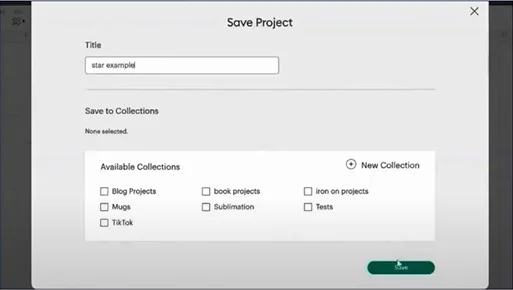
Step 1: First, save the project you’re creating.
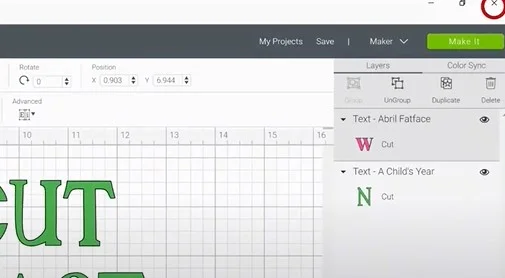
Step 2: Close the Cricut Design Space application.
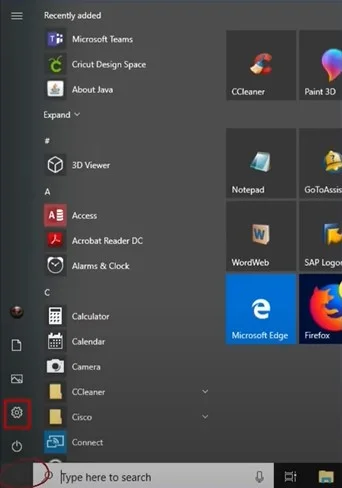
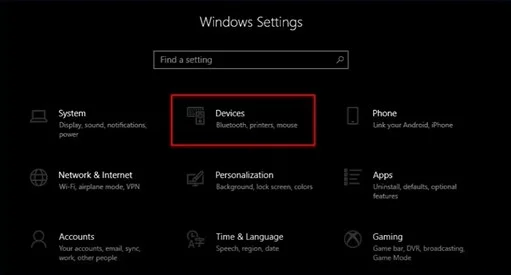
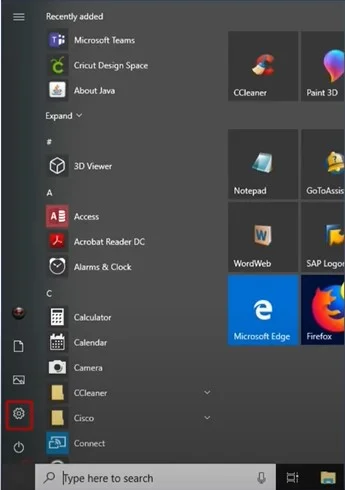
Step 3: Open the Windows start menu and select settings.
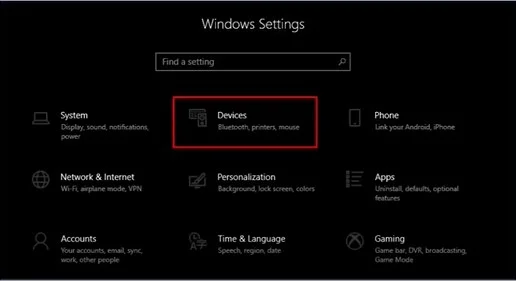
Step 4: Go to the Devices Option.
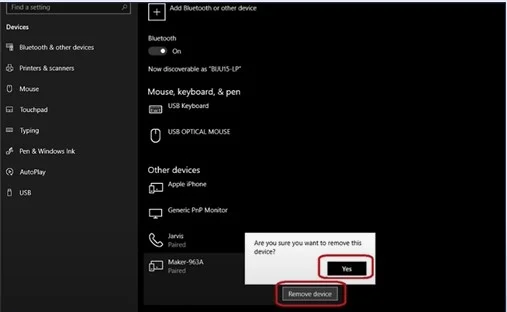
Step 5: Select the Cricut machine you want to remove, click Remove Device, and click Yes to confirm your actions.
Step 6: Open the Windows start menu and select Settings again.
Step 7: Go to Devices.
Step 8: Ensure Bluetooth is turned on, then click Add Bluetooth or Other Device.
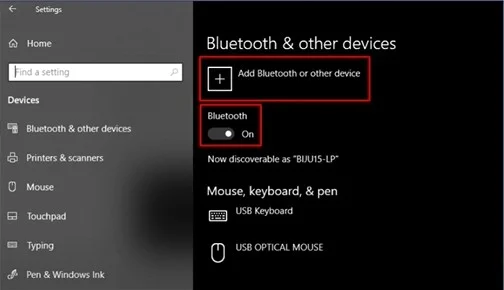
Step 9: Select Bluetooth and wait for the device to detect your Cricut machine.
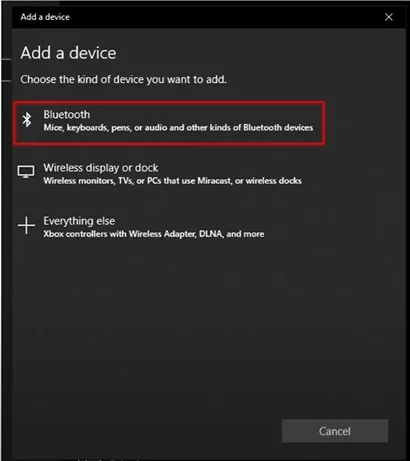
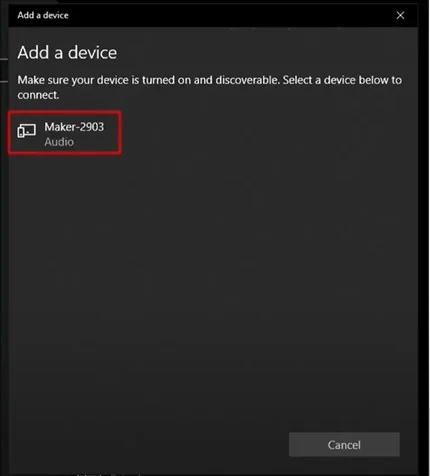
Step 10: Next, select your Cricut machine from the list.
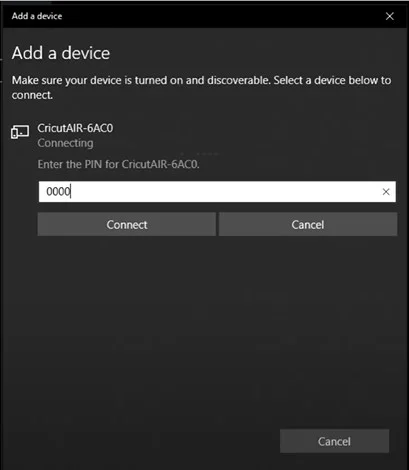
Step 11: If prompted to enter a pin, enter the universal pin or your pin if you’ve created one, then click Connect.
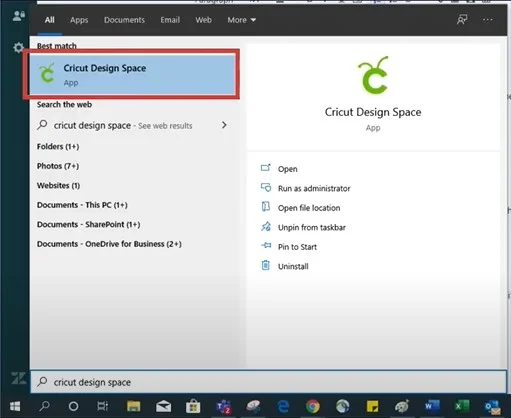
Step 12: Once paired successfully, open up Cricut Design Space.
Step 13: Try to attempt your project again.
To Sum Up
Cricut Design Space error can happen anytime. As a crafter, you may feel frustrated when the Cricut Design Space application fails to open or does not function properly. Many reasons, like unstable internet connection or corrupt cache files, may contribute to this. However, you can effortlessly fix the Cricut Design Space error by following the troubleshooting steps discussed above.
If you are still unable to fix the problem, remember that expert assistance is always available.