If your Cricut EasyPress 2 is overheating, showing incorrect temperature readings, or not responding to button presses, don’t panic. These issues are common, and often, a simple reset can bring the machine back to its original state.
Think of resetting as giving your EasyPress 2 a fresh start. But how do you reset the press? Don’t worry – we have outlined the exact method for you. Before jumping into the instructions, let’s first go over a few important things you need to know.
Things to Check Before Resetting Cricut EasyPress 2
It may be time to perform a reset on your Cricut EasyPress 2, but before you do that, here are some key things to know:
- Check the current time and temperature settings on your EasyPress 2.
- Check for firmware updates.
- Make sure the machine is completely dry and free of moisture before performing a reset.
- Inspect if the power cord is damaged.
Common Problems During Reset Cricut EasyPress 2
While you try to reset the Cricut EasyPress 2 machine, you might encounter several potential issues, such as:
- Device not powering on
- Incorrect temperature or timer display
- Possible loss of previously set time or temperature adjustments
- Firmware glitches
- Bluetooth connectivity problems
Steps to Reset Cricut EasyPress 2
For a Cricut EasyPress 2 that is not working correctly, a reset may be a helpful solution. Here are all the steps to reset an EasyPress 2:
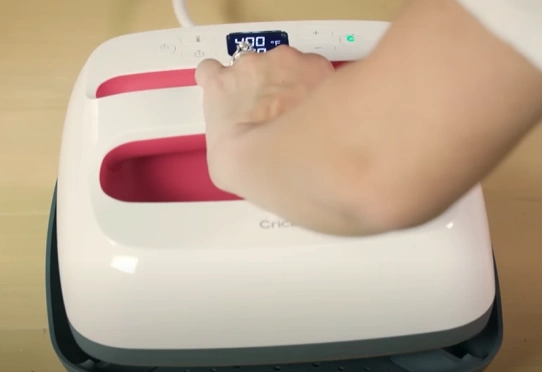
Step 1: Place the Cricut EasyPress 2 on its safety base.
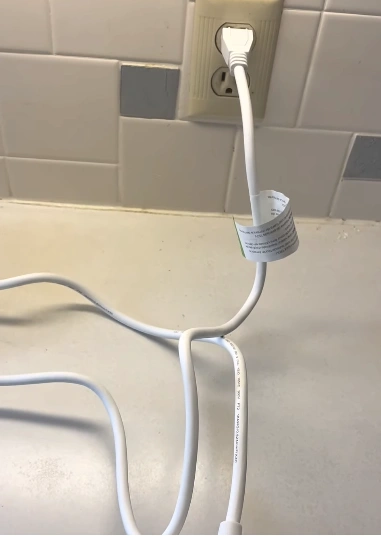
Step 2: Carefully unplug the EasyPress 2 machine from the power outlet.
Step 3: Wait at least 2 minutes to allow the machine to cool down and discharge completely.
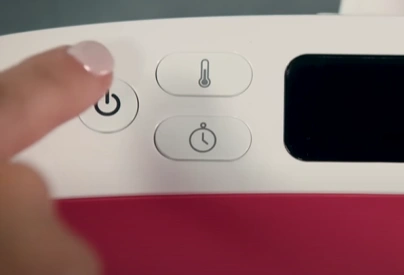
Step 4: Plug the Cricut EasyPress 2 back in and press the power button to turn it on.
Wrapping Up
A quick reset is often enough to restore the Cricut EasyPress 2 to normal working condition. By doing so, you can tackle the minor glitches and get back to crafting like always.
Follow the reset steps carefully to keep your EasyPress 2 running smoothly. Issues such as freezing or unresponsive buttons, display glitches, and more can all be resolved.