There can be several reasons behind your Cricut Explore 3 not working properly. However, you don’t need to worry, as we have a solution that can help—performing a hard reset. Let’s go through the steps to hard reset Cricut Explore 3 in detail, beginning with the common issues that may arise during the process.
Common Issues During a Hard Reset on Cricut Explore 3
The following are some of the issues that might occur when you are attempting to hard reset the Explore 3 machine:
- Firmware glitches
- Loss of custom settings
- Project or file deletion
- Reinstallation of drivers
- Sync errors with Design Space
Mistakes to Avoid During a Cricut Explore 3 Hard Reset
There are chances to make certain mistakes while you are hard resetting your Explore 3 machine. Here are the most common ones:
Unplugging the Power Supply Wrongly
Some users might abruptly unplug the Cricut machine while it is still processing. It’s wise to turn off the machine before unplugging it from the outlet. Wait for a while to ensure the internal components have fully powered down.
Mixing Up Hard Reset and Factory Reset
That’s another common mistake – confusing a hard reset with a factory reset. A hard reset only restarts the hardware and does not erase your projects, accounts, or settings. By contrast, a factory reset clears all stored data.
Using Sharp Objects Incorrectly
Using sharp objects to press internal buttons or ports can potentially cause damage. If your Cricut model has a reset button, use a non-metallic, non-conductive tool such as a plastic pen cap – instead of sharp objects.
Steps to Do a Hard Reset on Cricut Explore 3
When it comes to fixing issues with your Cricut Explore 3, guesswork may not help. Follow the instructions in the section below to perform a hard reset correctly:
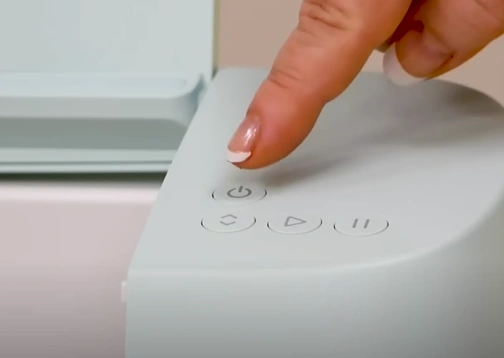
Step 1: Power off the machine by pressing the power button.
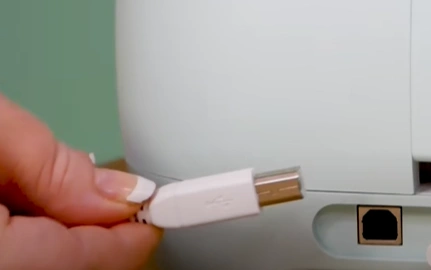
Step 2: Detach the USB cable from the device.
Step 3: Remove the power cord from the wall socket.
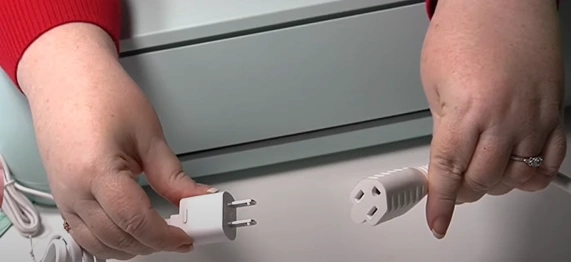
Step 4: Wait for 1–2 minutes to fully drain residual power.
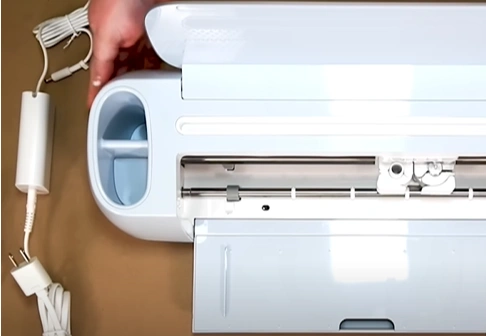
Step 5: Insert the power cord again into the wall socket.
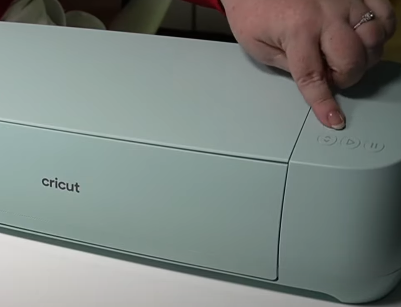
Step 6: Turn on the Cricut machine by pressing the power button.
Wrap Up
Here we conclude the instructions to perform a hard reset on a Cricut Explore 3. Make sure to follow each step carefully without skipping any. If you face issues like firmware glitches, lost settings, or file errors, address them quickly to ensure a smooth reset.
Also, don’t confuse a hard reset with a factory reset – they are very different processes. Before starting the reset, properly disconnect the power supply. And instead of using sharp objects like pins, always use a safe, non-metallic tool.