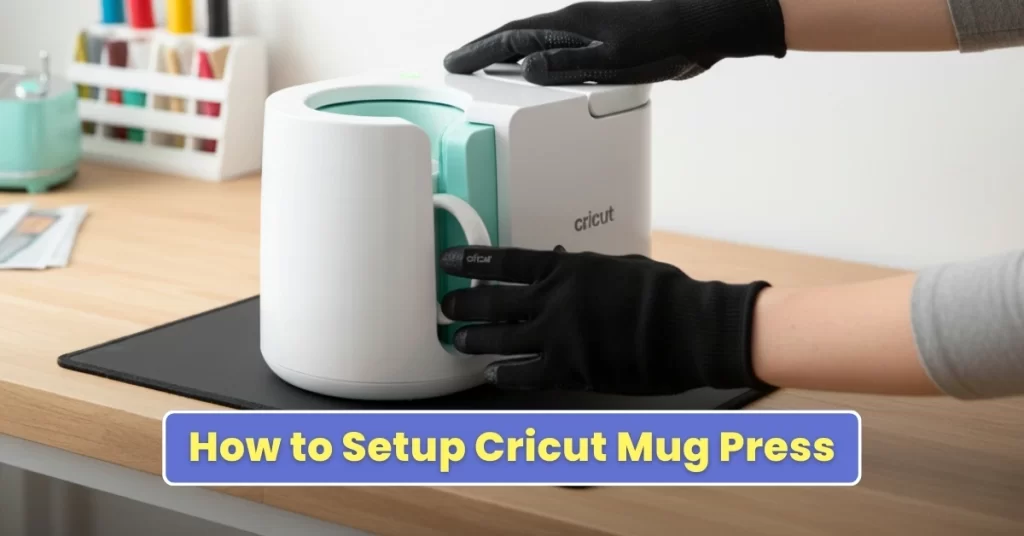
Common Problems During Cricut Mug Press Setup
Setting up the Cricut machine is not difficult, but there may be some challenges. Here are a few of them:
- Mug Press not turning on
- Blinking lights
- Design Space is unable to detect the machine
- The machine is not heating
- Software glitches
Things to Check Before Getting Started
It is good to make sure everything is arranged and correctly positioned before you start the Cricut Mug Press setup. Take a look at the things you need to check in the first place:
- Condition of the machine: Check that the press is clean and free of dust. Make sure there are no parts that are damaged or loose. Inspect the heating element for any signs of wear and tear.
- Temperature and settings: Pre-check your machine temperature settings. Verify that you’re using the correct press time for your mug size. Run a small test with a spare mug when trying a new design.
- Safety gear: Keep heat-resistant gloves with you to reduce the risk of burns. Be careful of the hot surfaces on the machine. Keep pets and children away from the work area.
- Mug compatibility: Use Cricut-approved mugs. These are usually the 11-oz or 15-oz sublimation mugs. Ensure mugs are sublimation-friendly and free of chips. Avoid mugs that are too tall or too wide for the press.
- Software and connectivity: Check that the Design Space app is up to date and that the machine is recognized by your computer when using digital design files. Confirm Wi-Fi or USB connection if needed for the design transfer.
Steps to Setup Your Cricut Mug Press
Once you’ve unboxed your new Cricut machine, plug it into the power outlet. Connect the USB cable to the press and your desktop or laptop. Here is what you need to do next:
Step 1: Open the Design Space software on your computer.
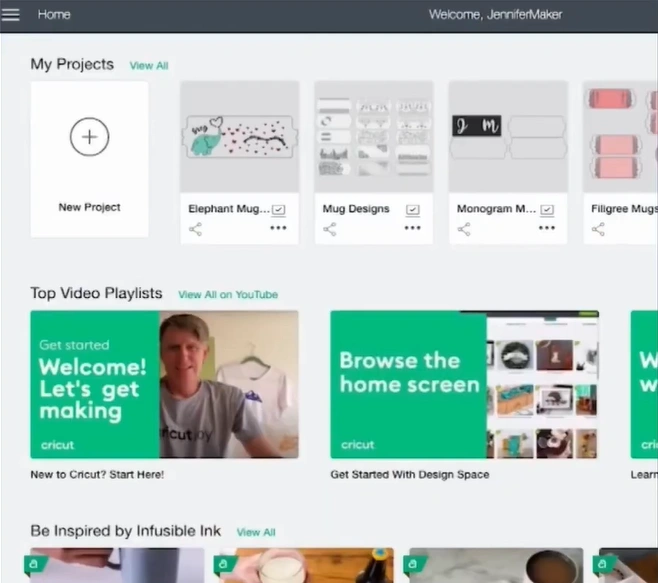
Step 2: Click the three lines (on the top-left).
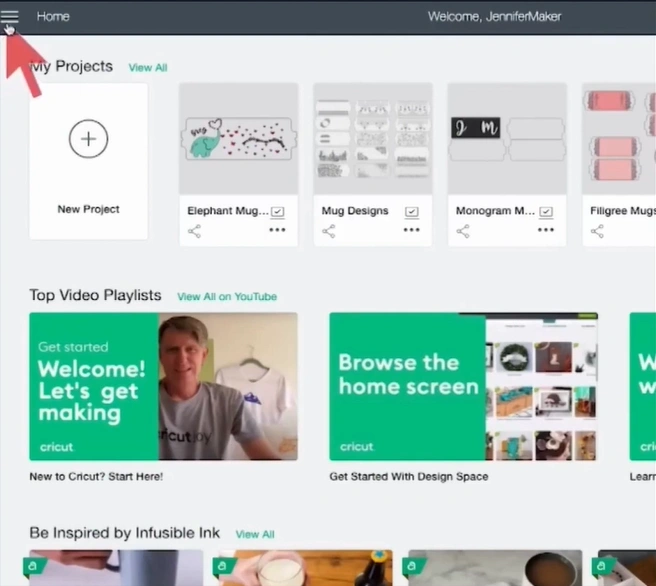
Step 3: From the list, select the “New Machine Setup” option.
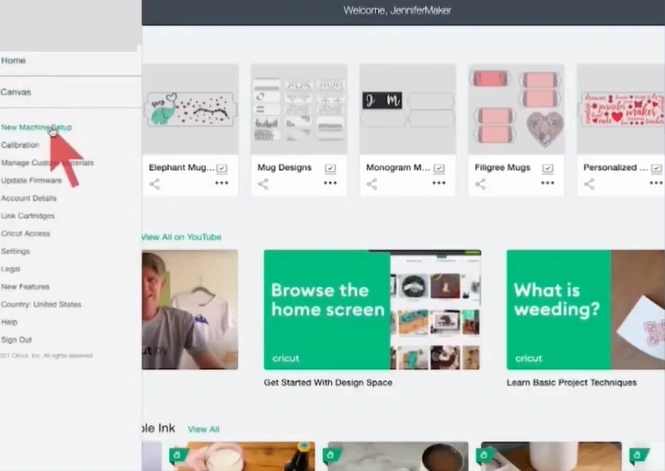
Step 4: After that, choose Heat Press.
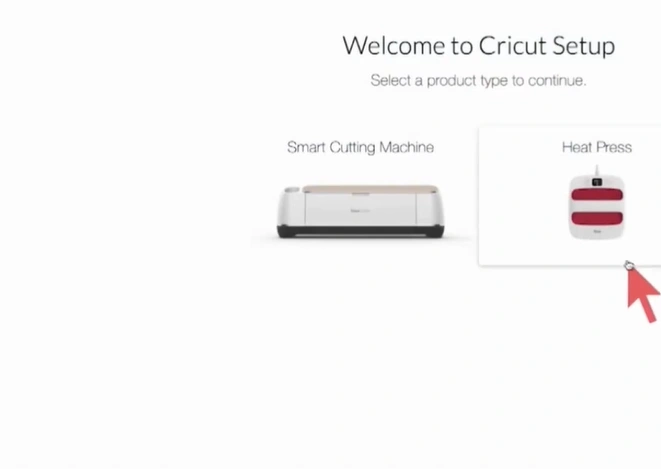
Step 5: Select Cricut Mug Press.
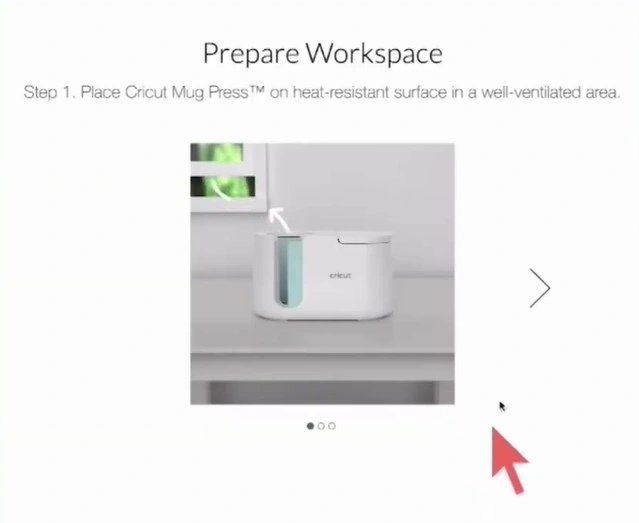
Step 6: Follow the instructions in the Prepare Workspace screen.
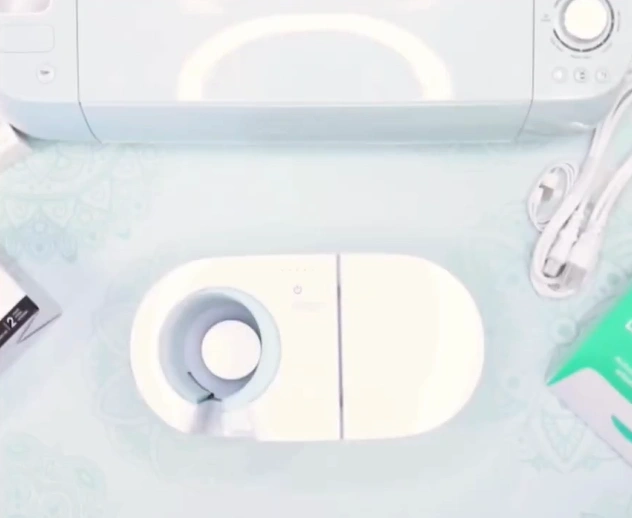
Step 7: Click on the right arrow icon.
Step 8: Press the power button on your machine, and then click the arrow.
Step 9: Click Continue.
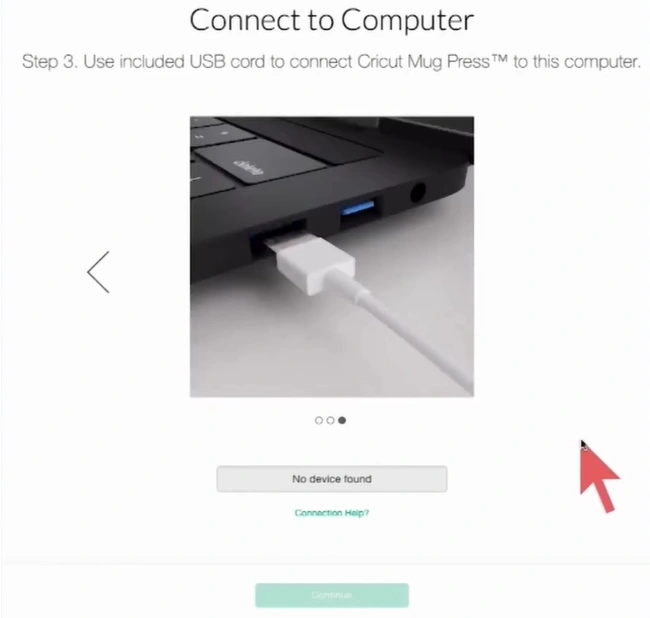
Step 10: Agree to the terms and conditions.
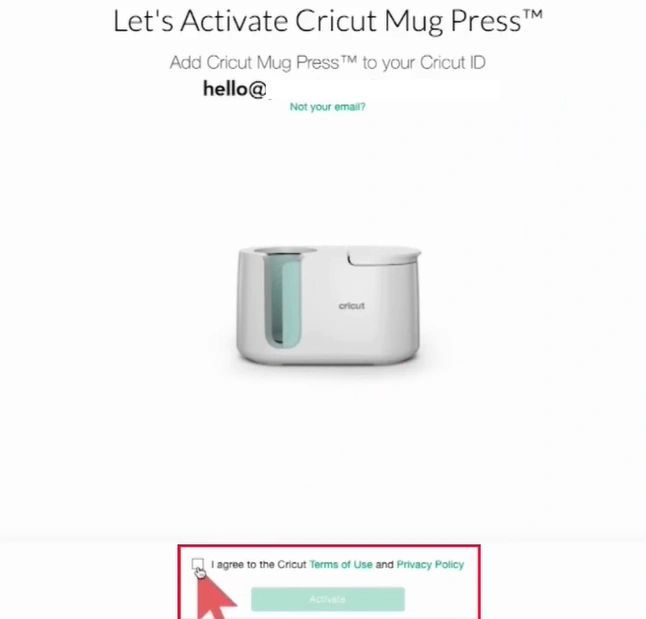
Step 11: Click on Activate.
Step 12: A firmware update will start.
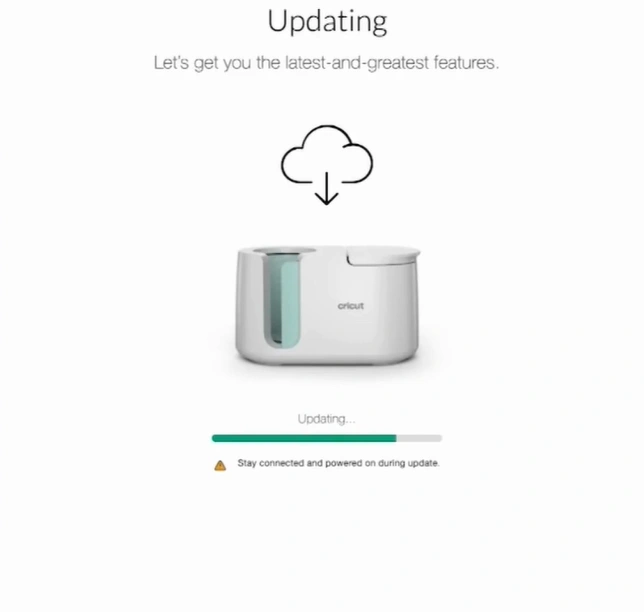
Step 13: When the update is finished, disconnect the USB cable.
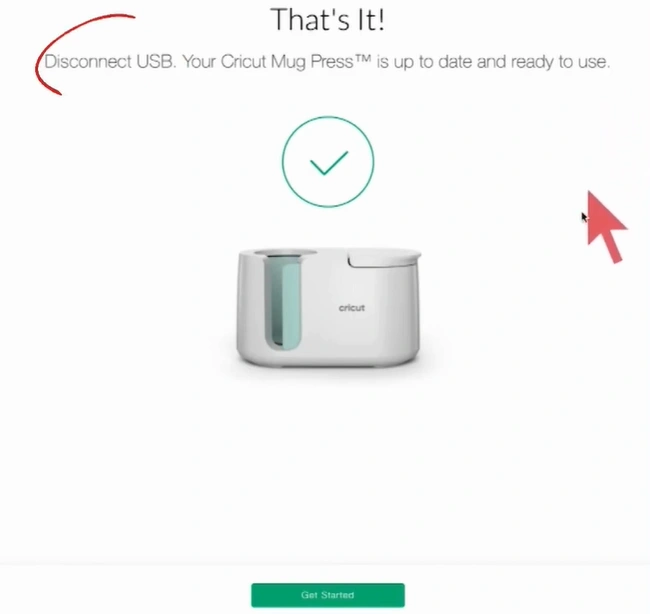
Step 14: Click on the Get Started option.
Also Read:- How to Clean Cricut Heat Press?
Final Thoughts
You are all done with the Cricut Mug Press setup. Now you can start using the machine and create your own customized mugs. For the best outcomes, try experimenting with different Infusible Ink designs, colors, and mug sizes.
Before you start the setup, check that the power outlet is working properly. Make sure the work area is clean, flat, and heat-resistant. Check for any sign of damage on the machine. Update the Design Space software if it is not up to date.