Are you ready for another exciting crafting session with your Cricut Joy Xtra? Your work desk is neatly organized, the vibrant vinyl sheets are set, and the perfect design is waiting to be created. You’re expecting great results from your Cricut Joy Xtra, but suddenly, something isn’t right. The machine won’t start, keeps disconnecting from your device, and Design Space refuses to connect.
Don’t worry – there’s a fix. A quick reset may be all your Cricut Joy Xtra needs for a fresh start. But how do you reset it? We have explained the full method below. Before we dive in, let’s go over the key things you should know first.
Before You Start: Important Things to Know
Here are the important things that you should keep in mind when getting started with the Cricut Joy Xtra reset:
Check the Power Source
Ensure you are resetting the Joy Xtra with a stable power supply. Weak power strips or faulty outlets can cause interruptions that often prevent the reset process from completing.
Reconnect in Design Space
After you reset, reconnect your crafting machine in the Design Space app and complete the setup. Make sure to check for and install any available updates to ensure smooth performance and a better crafting experience.
Wait Patiently
The Cricut Joy Xtra may take some time to restart following the reset, so don’t immediately think that it is malfunctioning. Just be patient, and give it a moment to power back up.
Check the Indicator Lights
If the indicator lights keep flashing even after a reset, it may be a sign of a hardware or firmware problem. In such situations, a reset alone may not resolve the issue.
Potential Problems When Resetting Cricut Joy Xtra
When trying to reset your Cricut Joy Xtra, you are likely to face certain potential issues. These can be:
- Loss of saved settings
- Unresponsive buttons
- Re-pairing problems
- Firmware glitches
- Temporary malfunctions
Steps to Reset Your Cricut Joy Xtra
Adhere to these easy and straightforward steps for a successful Cricut Joy Xtra reset:
Step 1: Press and hold the power button to turn off the Cricut Joy Xtra (wait until the lights go off).
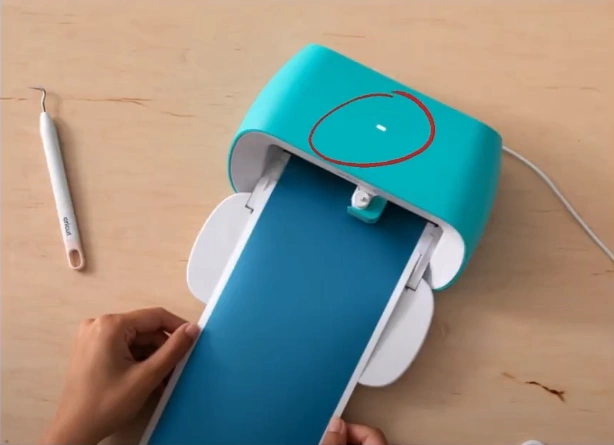
Step 2: Next, unplug the machine from the power source. Wait for a few moments to let the machine fully shut down.
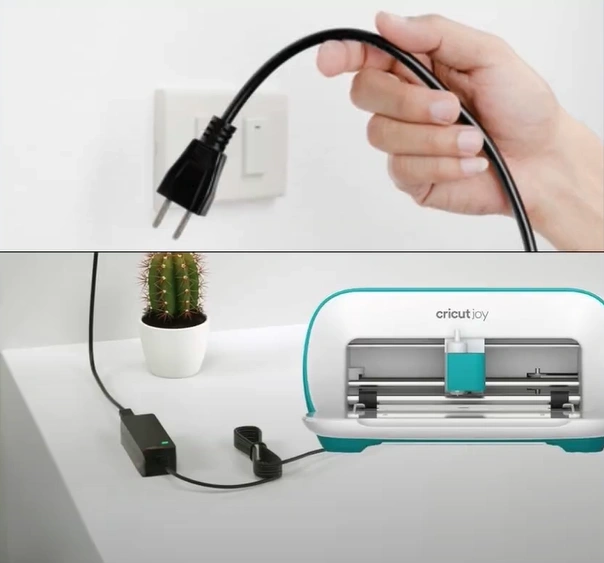
Step 3: While the machine is unplugged, press the power button for almost 10 to 15 seconds to discharge residual power.
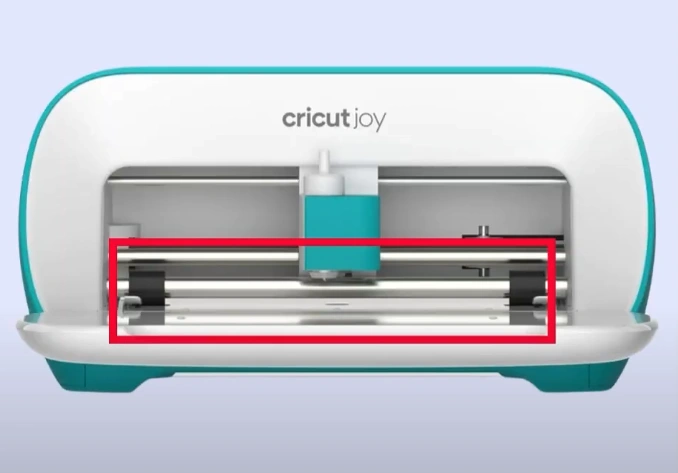
Step 4: Reconnect the power cord and plug the machine back in.
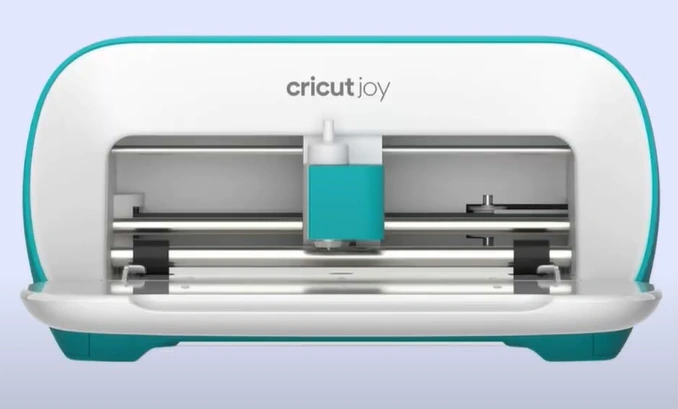
Step 5: Hit the power button to restart the cutting machine.

Step 6: Re-pair via Bluetooth if needed: pair the Cricut Joy Xtra with your computer, tablet, or smartphone.
Step 7: Lastly, open Design Space, sign in to reconnect your account, and sync your settings.
Also Read:- How to Calibrate Cricut Maker?
To Sum Up
Apply the steps above to get your Cricut Joy Xtra running smoothly again without interruptions. A quick reset helps you return to crafting easily. Just review the important notes before starting, carefully follow each step, and fix any issues that come up along the way.