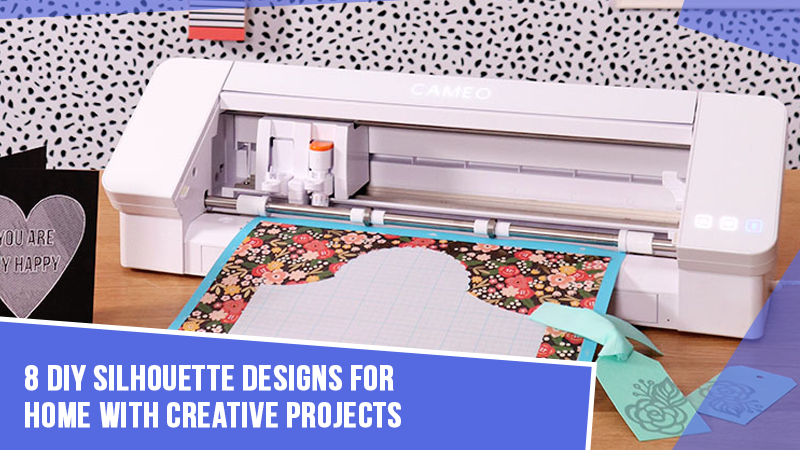
A new addition has arrived in your crafting toolkit: the Silhouette Cameo, and you are ready to take your crafting to the next level. Before you start cutting designs and customizing decals, make sure to prepare your machine by downloading and installing Silhouette Studio.
Silhouette Studio is the main software for Silhouette Cameo and is free to use, though it also offers optional paid upgrades for extra features. Here’s how to download and install Silhouette Studio to start using your machine. We have explained the entire process in detail, beginning with the potential issues that might occur along the way.
Problems When Downloading Silhouette Studio
Here are some of the potential problems that might arise when downloading software for Silhouette Cameo:
- Software compatibility issues
- Wrong software version
- Corrupted installer file
- Internet connection issues
- Conflicts with prior versions
Mistakes to Avoid When Downloading Silhouette Studio
Let’s take a look at the mistakes that most users make when downloading Silhouette Studio on their computers:
- Not downloading from the official website
- Choosing the wrong software version
- Forgetting to update the software
- Not installing drivers
- Skipping account creation
Steps to Download and Install Silhouette Studio
Follow the steps in the section below to download and install the Silhouette Studio software for your crafting machine:
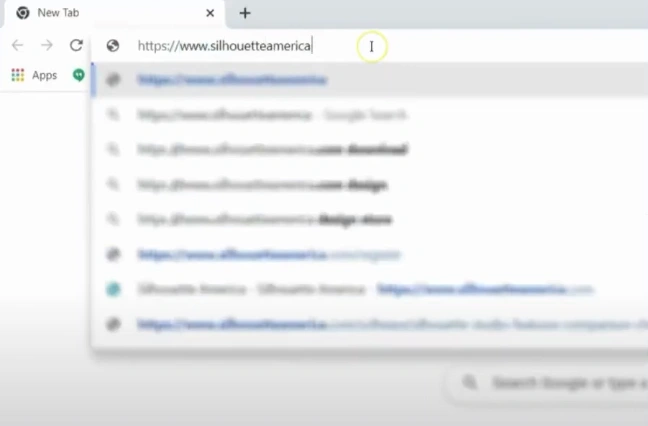
Step 1: First of all, open your browser and go to the official Silhouette website.
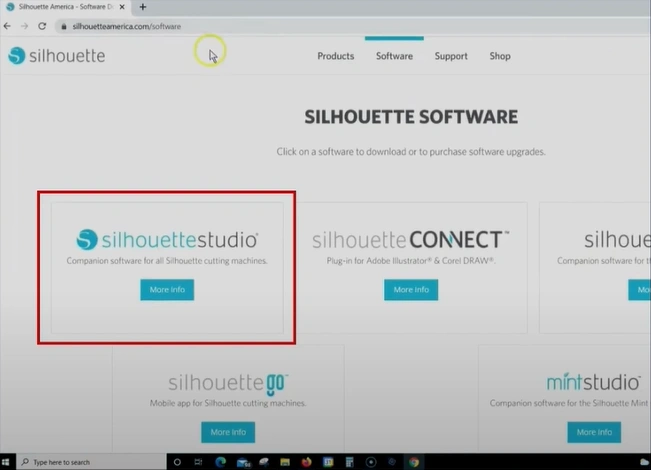
Step 2: Once you open the website, click on “More Info” under Silhouette Studio.
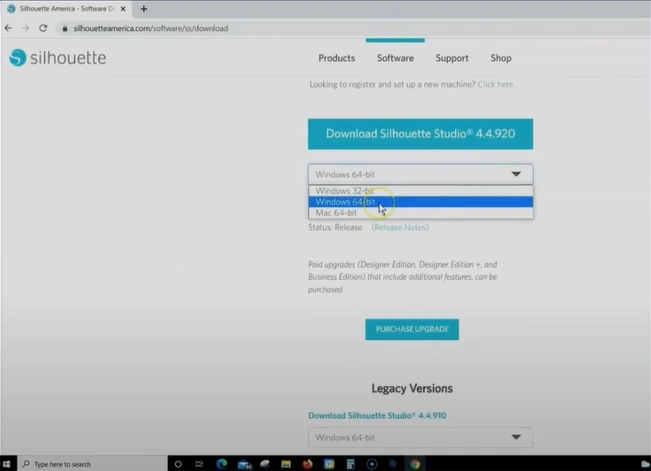
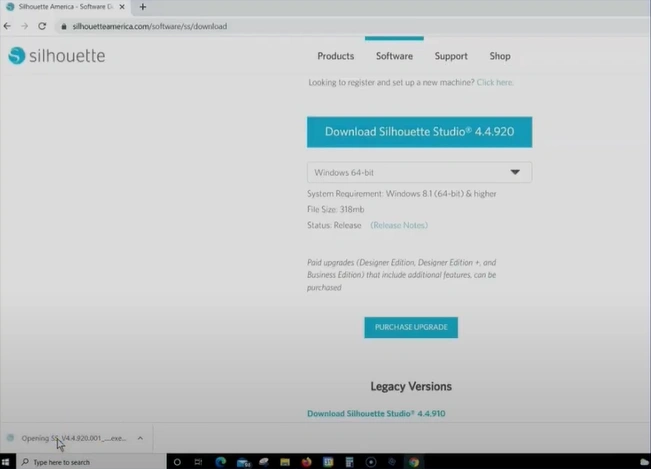
Step 3: Now, select your operating system (Windows or Mac) and click “Download Silhouette Studio.”
Step 4: Open the file you downloaded and click Next at the Welcome screen.
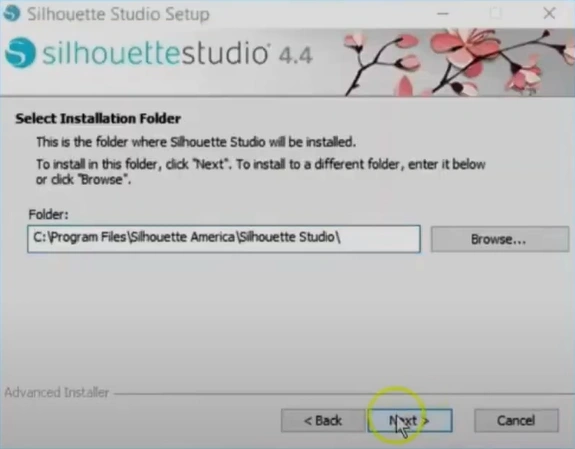
Step 5: Click Next again, then click Install on the Ready to Install screen, and the installation will begin.
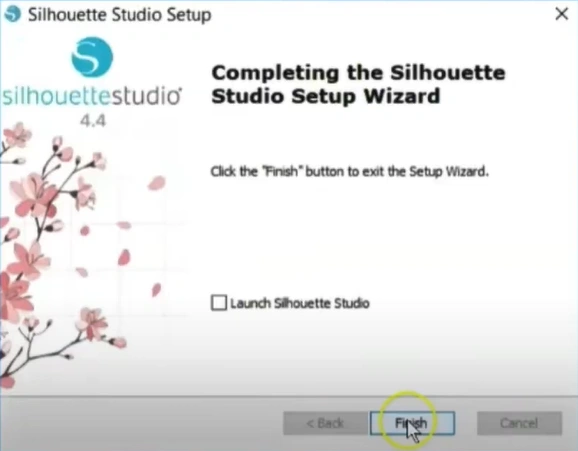
Step 6: When you get to the Completing the Silhouette Studio Setup Wizard screen, click Finish.
Also Read:- Silhouette Cameo 4 Pro Not Cutting [Fixed]
Conclusion
That’s the right way to download Silhouette Studio for your machine. By simply following the steps we have discussed above, you are all set to create stunning designs from scratch. Make sure you visit the official Silhouette software website in your browser and select a compatible software version, so you can easily tackle potential issues like unstable internet connections, corrupted installer files, or compatibility problems.