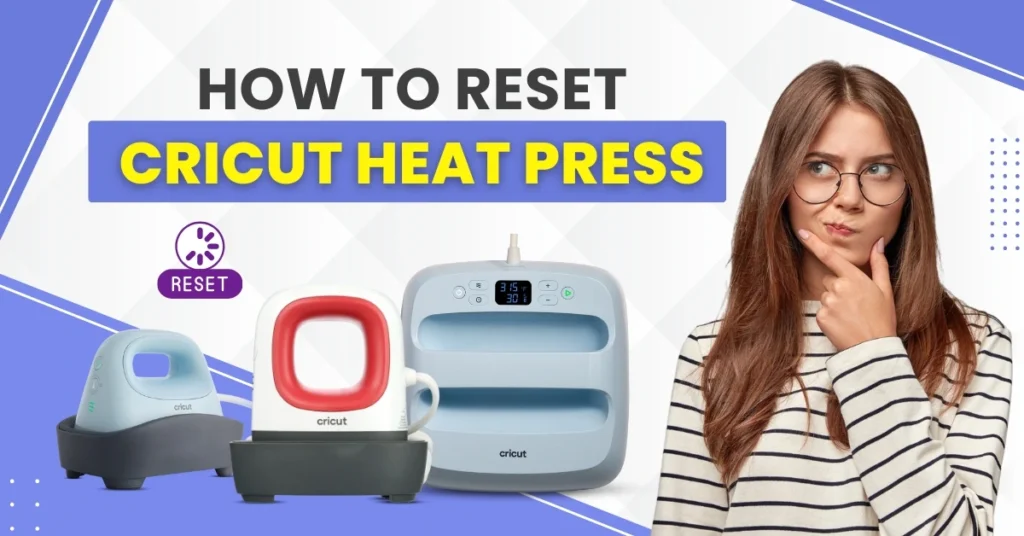
However, over the past few days, the heat press machine has been experiencing errors and failing to heat properly. These constant hitches are disrupting your creative flow. Feeling annoyed, you might be thinking, “What should I do now?” The good news is that there’s a simple way to resolve these issues – a reset. Resetting may bring your machine back to normal. But before we explain how to reset the Cricut Heat Press, let’s first look at the different types of Cricut Heat Press machines available in the market.
Different Types of Cricut Heat Press
You can find a vast range of Cricut heat presses. Each is custom-made to meet distinct crafting needs. Whether you’re a casual crafter working on DIY projects or run a full-blown creative business, there is something for everyone. Let’s take a look at the lineup of heat press machines:
- Cricut EasyPress Series (EasyPress 2 and 3)
- Cricut EasyPress Mini
- Cricut Autopress
- Cricut Mug Press
- Cricut Hat Press
When Should You Reset Your Cricut Heat Press?
Resetting your Cricut machine is not something that you need to do on frequent occasions. But there are situations where it becomes necessary. Here are a few of them:
Before You Sell the Heat Press
Do you want to sell or gift your machine to someone else? If so, ensure you perform a reset beforehand. A reset can remove custom settings and reset the machine to its original settings.
If the Machine Malfunctions
If the Cricut machine is not heating up properly or is stuck on a certain temperature/time, it may be time to perform a reset. Sometimes, the machine beeps constantly and shows error codes. So, you must act quickly and reset it. Doing so can resolve any of these problems.
If There Are Connection Issues
There can be situations when your machine, probably the EasyPress 3, shows bluetooth pairing issues with the Cricut Heat app. So, a quick reset can resolve the problem by re-establishing a smooth connection.
The Process to Reset Cricut Heat Press
Take a glance at the essential steps that you need to follow to reset various models of the heat press machine:
Cricut EasyPress
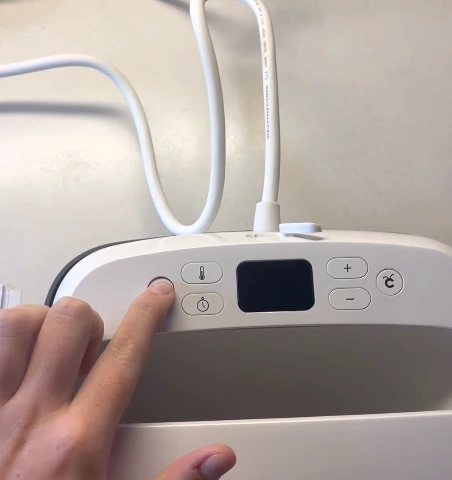
Step 1: First, turn off the machine by pressing the power button.
Step 2: Next, unplug it by removing the power cable from the wall outlet.
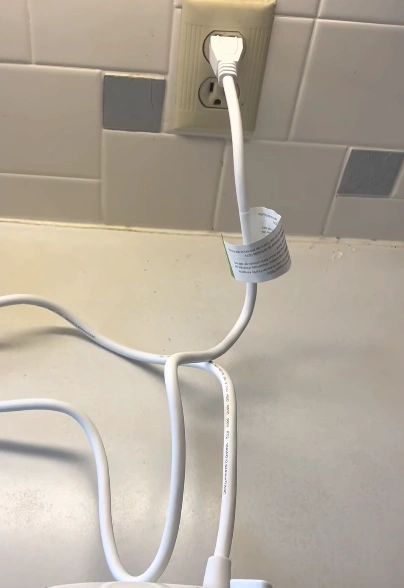
Step 3: Wait for a while (about 30 seconds to two minutes) to let the machine cool down and reset.
Step 4: Plug it back into the outlet and power it on. Check if the issue persists.
Cricut Autopress
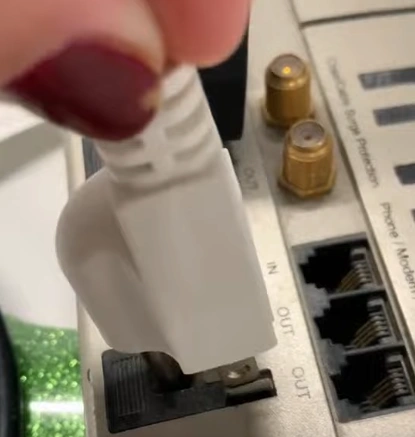
Step 1: Check if the control pod is connected to the Cricut Autopress.
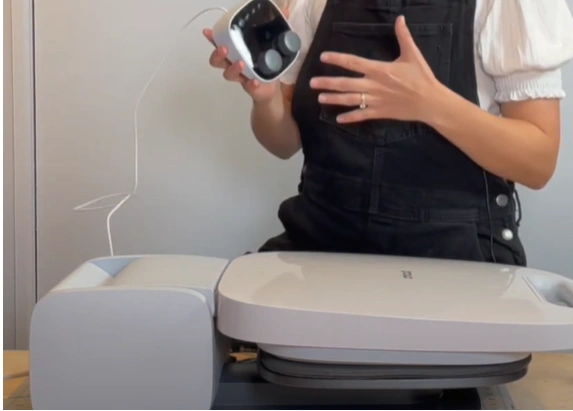
Step 2: Next, find the small pinhole located at the bottom of the control pod. That’s the Reset button.
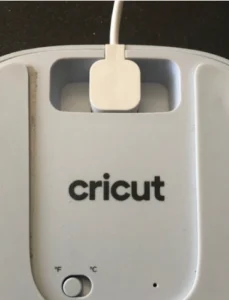
Step 3: Insert a paperclip into the pinhole.
Step 4: Gently press and hold the Reset button using the paperclip. Wait for 5 to 6 seconds until you hear a single chime.
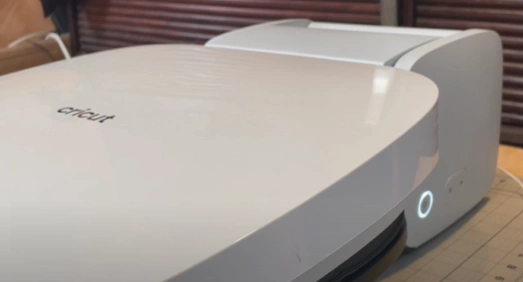
Step 5: Let the machine fully shut down and then restart. It’ll return to its factory default settings.
What to Do After Reset?
Once you are done with the resetting process, keep in mind the following to have everything go smoothly.
Re-Pair With the Cricut Heat App
If you are using the EasyPress 3 model, reconnect or re-pair it with Bluetooth. Turn on your EasyPress 3 and open the Cricut Heat app on your smartphone or tablet. The app will detect the machine, and you must follow the instructions to re-pair. Update the firmware when prompted.
Readjust Manual Settings
Are you using a manual model (a machine that doesn’t connect to the Cricut Heat app)? Then, you must re-enter your preferred temperature and time manually after the reset. You can refer to the Cricut Heat Guide to find the recommended settings based on the materials you use.
Reconnect Accessories (If Any)
Do you have any accessories, such as an EasyPress mat or infusible ink products, lined up? If so, verify that they are properly set up and function correctly with your new settings.
Troubleshooting If Reset Doesn’t Work
In case the Cricut Heat Press doesn’t work even after a reset, try these troubleshooting steps:
- Check if the power cord is plugged in properly and securely. Also, you can try using a different power outlet to check for power issues.
- If the buttons seem unresponsive, press and hold them for a few seconds. Make sure the press is fully powered before using it. Wait for it to initialize, and don’t press any other button before that.
- Do the testing and double-check your settings. Read the Cricut Heat Guide, either online or in the Cricut Heat app, to verify you have the appropriate temperature, time, and pressure settings for the materials you’ll use.
Summing Up
Having learned how to reset the Cricut Heat Press, you can now easily handle heating malfunctions, connection problems, and system errors. The resetting process is simple, no matter what model of heat press machine you are using. Resetting is quick and easy – just power off, unplug, let it cool, and restart. For models like EasyPress 3, don’t forget to pair again with the Cricut Heat app and adjust your settings.
Address the common hiccups with a quick reset and get back to your crafting without any hassle.