The all-new Cricut Heat Press has finally joined your crafting kit, and you’re ready to make some cool DIY crafts. But before you start using the press, you need to set it up. If you’re new to the Cricut Heat Press, you might wonder how to set it up correctly.
You must set up the Cricut Heat Press before you begin using it. For some users, the setup process can feel a bit confusing, but it isn’t complicated. Once you know the right steps, you can complete the setup with ease. We have highlighted the Cricut Heat Press setup process here. Before we go to the steps, check a few things first.
What to Keep in Mind Before You Start the Setup?
There are certain key points to consider before starting the Cricut Heat Press setup. A few of them are listed below:
Keep a Flat and Clean Workspace
The workspace should be clean and smooth before you begin with the setup. A stable surface helps the press apply even pressure. This can prevent uneven pressure while pressing, and you can expect smoother results.
Keep Needed Tools Nearby
Bring everything you need during the setup process. Gather all required tools before you start, so you don’t need to stop during the setup.
Preheat the Material
Preheat the material before pressing. By doing the preheating, the moisture trapped in the material will be removed, and you can expect better adhesion.
Issues That Arise During the Cricut Heat Press Setup
These are a few potential problems that could show up when trying to set up your all-new Cricut Heat Press:
- Wrong temperature settings
- Confusion with the material compatibility
- The heat plate is not warming up properly
- Loose cables or faulty sockets
- Connection problems
The Correct Steps to Set Up Cricut Heat Press
Now, let’s look at the steps to set up your Cricut Heat Press machine.
Step 1: On your smartphone, download the Cricut Heat app if you haven’t yet. Just go to the Play Store/App Store and download it.
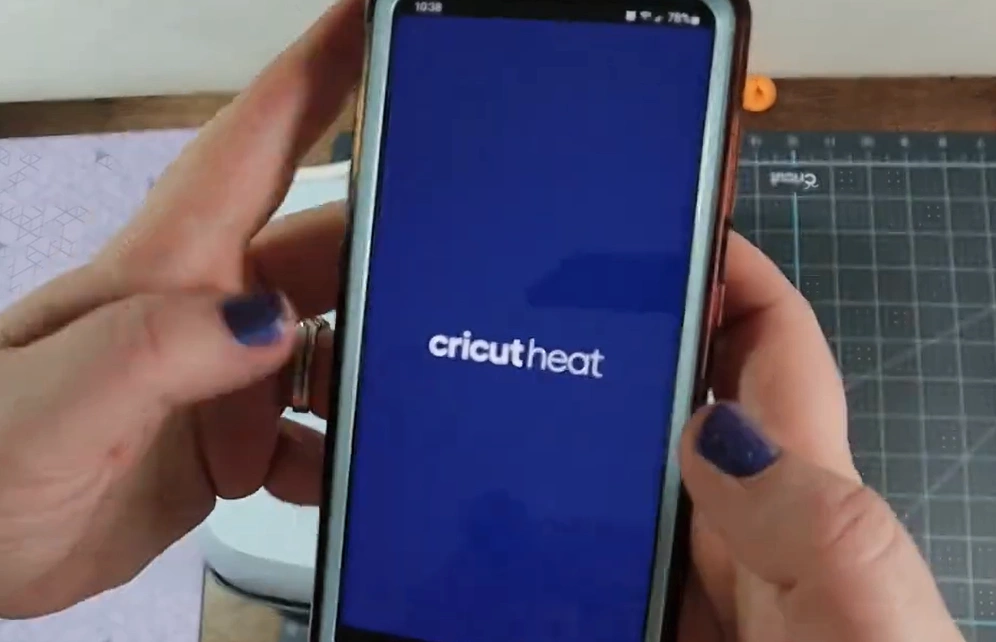
Step 2: Open the application and tap the icon in the top left corner.
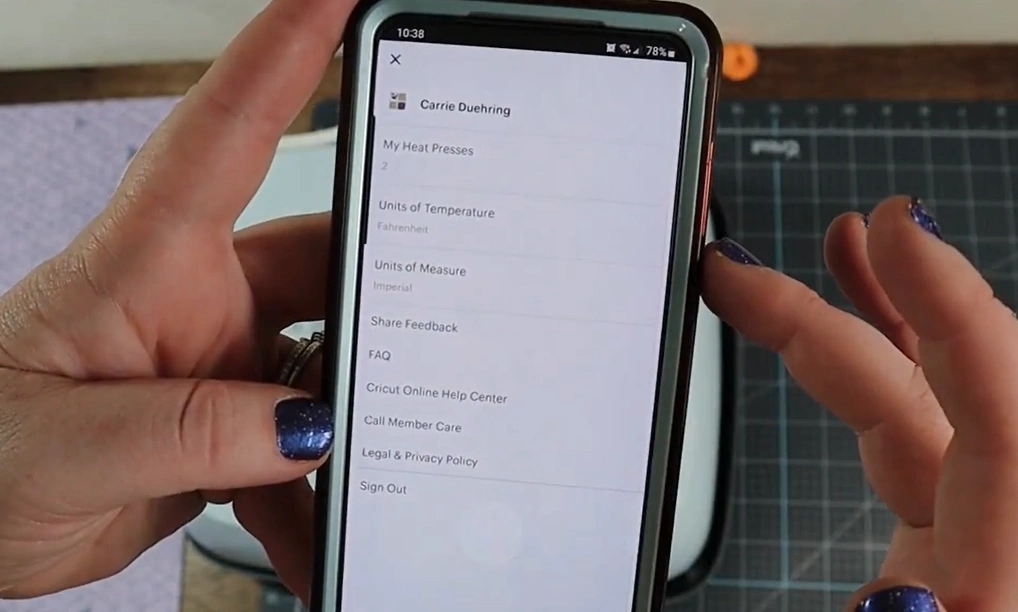
Step 3: Go to My Cricut HeatPresses.
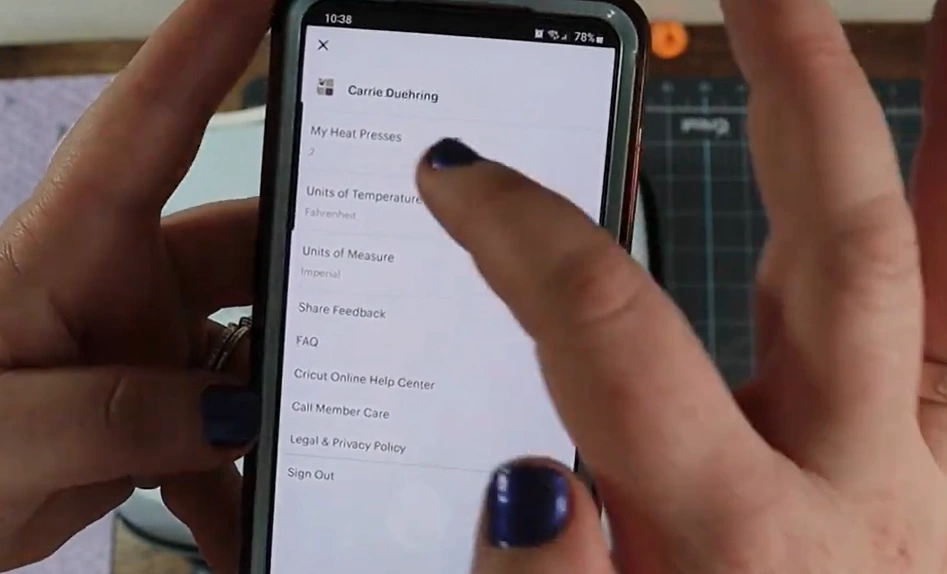
Step 4: Tap on the “Set Up New Heat Press” option.
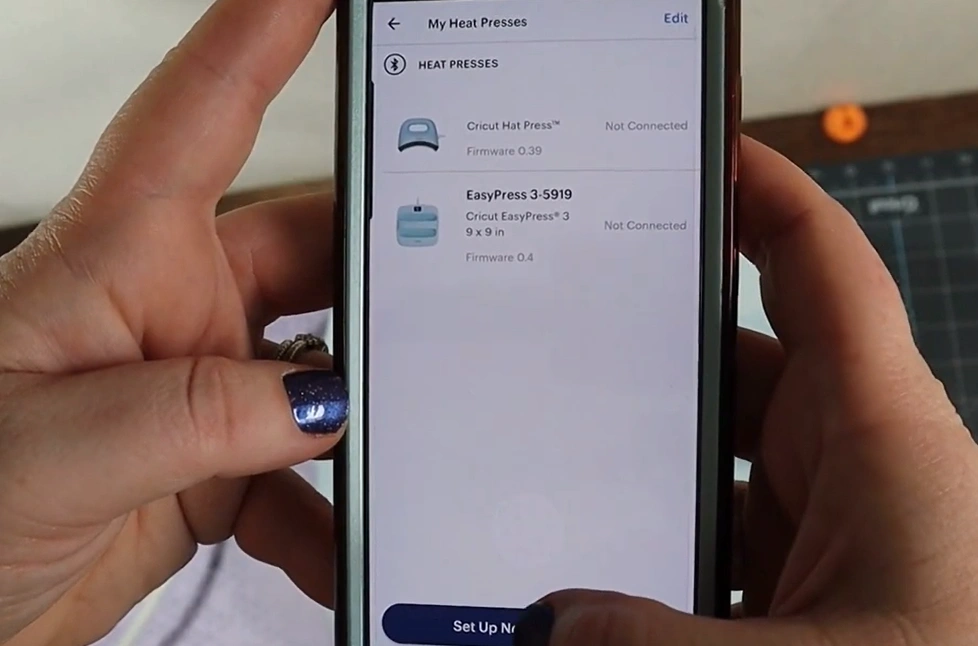
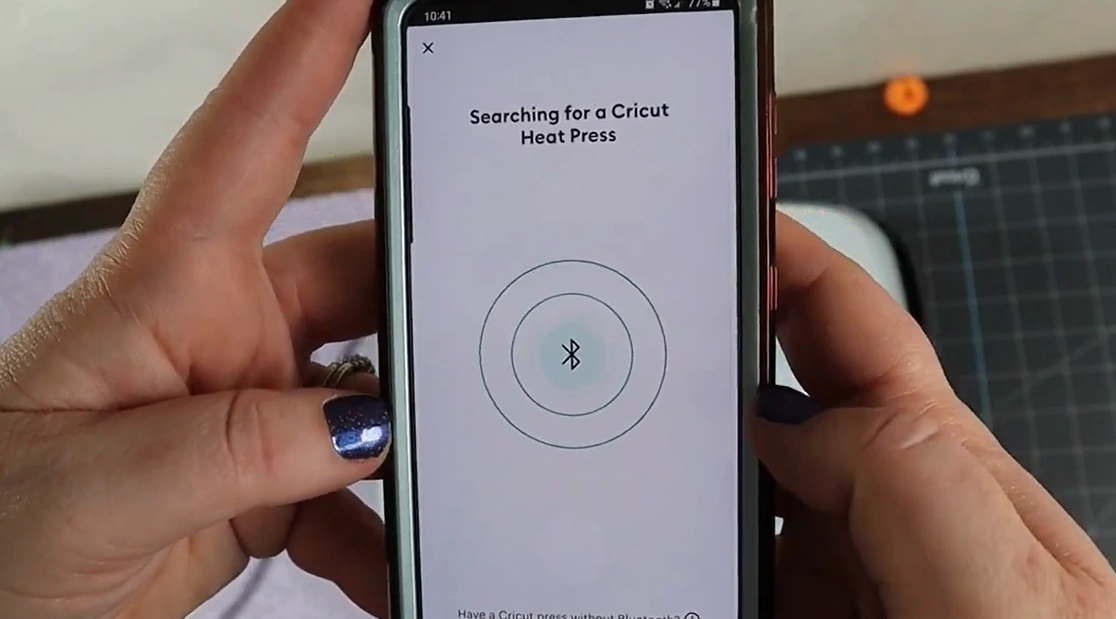
Step 5: Your phone will now search for the nearby machines.
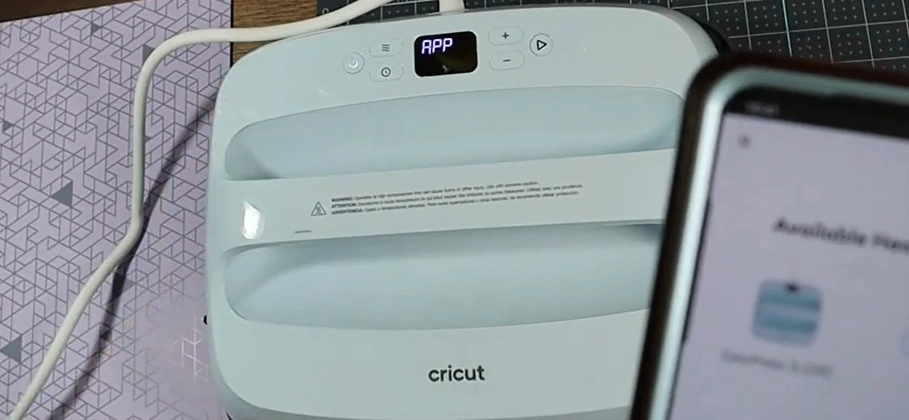
Step 6: On your machine display panel, you can see the “APP” text blinking. The text indicates that the Cricut is trying to connect to the app.
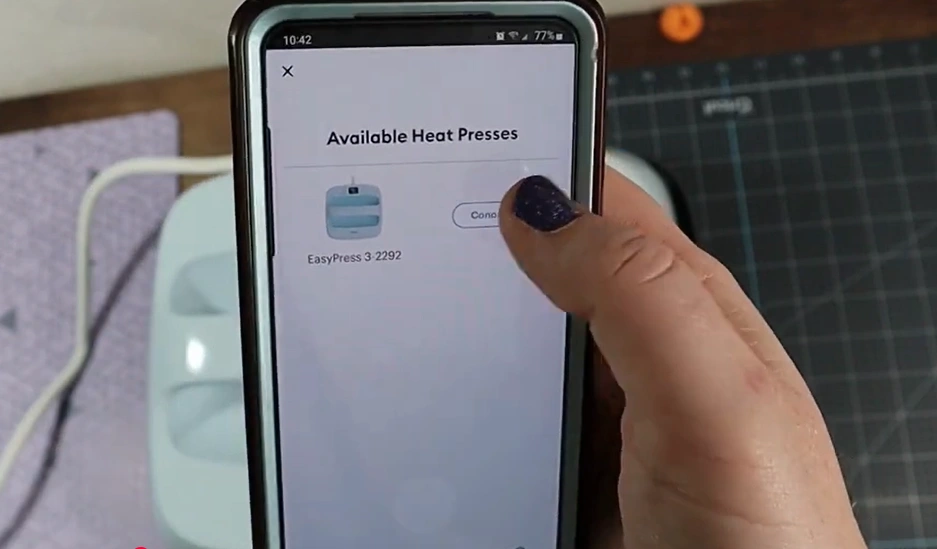
Step 7: On your phone, you will see that the press is trying to connect.
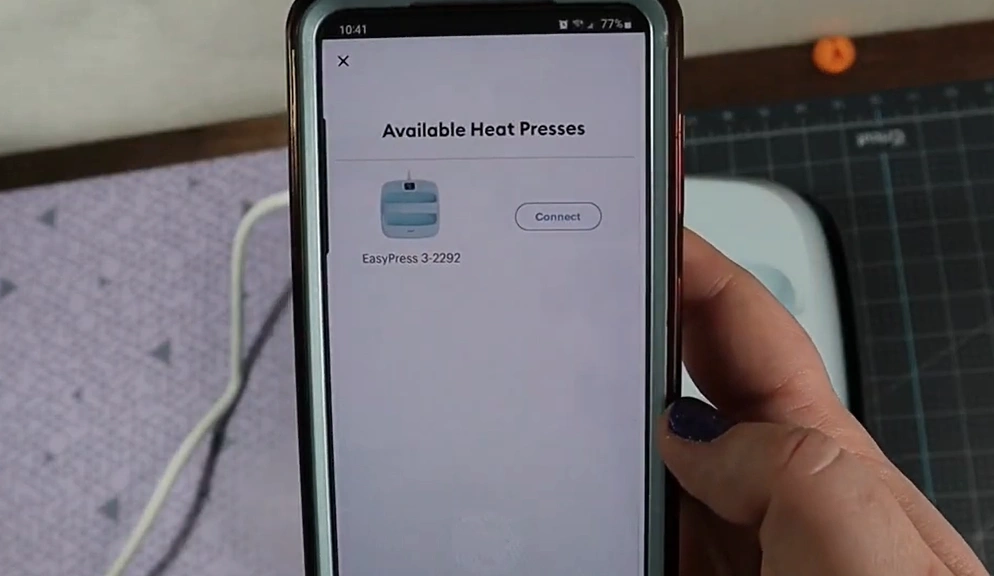
Step 8: Select the “Connect” option just beside the name of your machine.
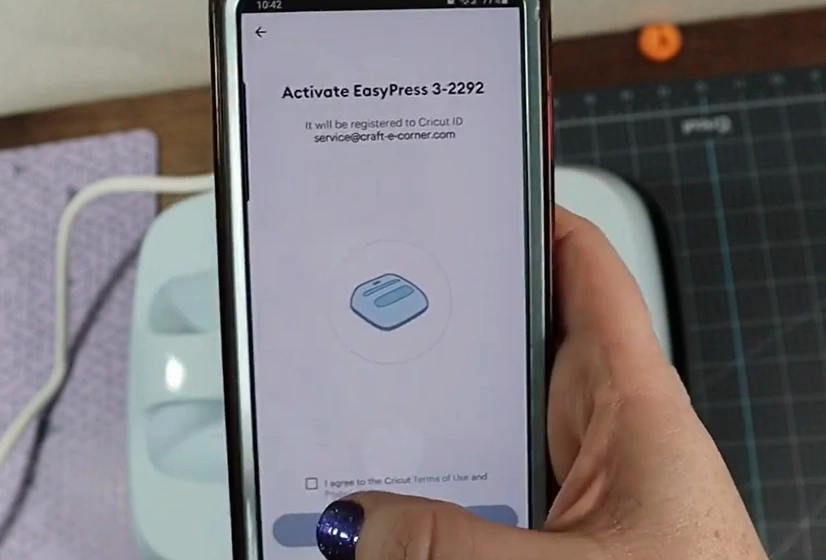
Step 9: Once it finds the press, check the box next to “I agree to Cricut Terms of Use and Privacy Policy,” and tap on the Activate button.
Step 10: You will get a “Success! You’re Ready to Make Something Great” message on your screen.
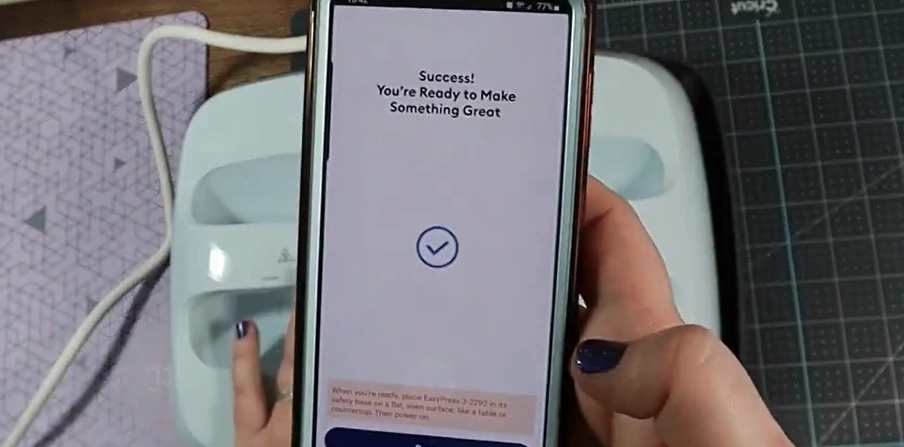
Step 11: Tap on Done.
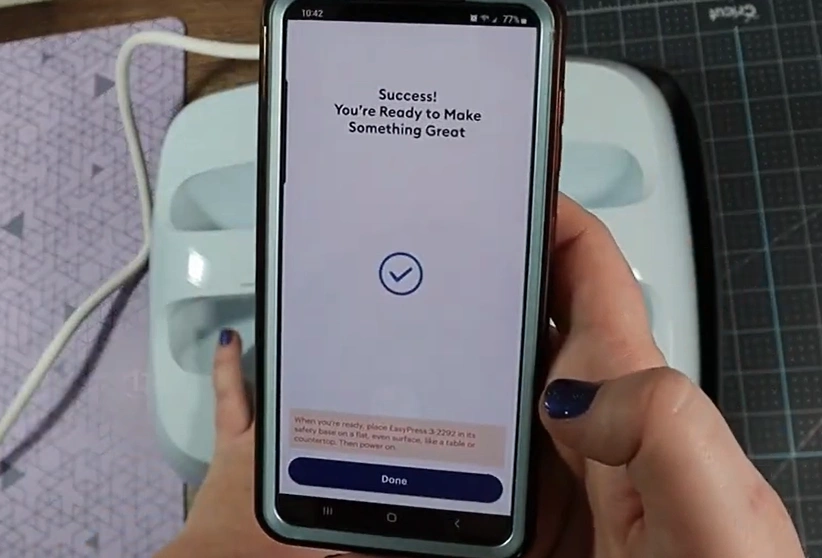
Step 12: Now that you’re connected to your Cricut Heat Press, you can start your DIY projects.
Also Read:- How to Use Cricut Heat Press?
Bottom Line
Just adhere to the above instructions, and you can be ready to use your Cricut Heat Press. Remember to double-check your machine settings and material type before you get started. Keep all the necessary tools and materials available, have a clean, even surface, and preheat the surface beforehand.